Home Blog Page 120

CSAM: Apple Stopped The Implementation Of Child Pornography Detection

Apple news and stories and more

Apple has finally stopped the development of the CSAM detection presented in the summer of 2021. The feature was supposed to recognize child pornography when uploading photos to iCloud using special hashes. 

The technology was misunderstood in many places when it was announced, then discussed controversially, and the rollout was later paused.

This was stated by the senior vice president of Apple, Craig Federighi, in an interview with The Wall Street Journal. Federighi said that Apple’s focus on child protection has been on areas such as communication and providing parents with tools to protect their children in iMessage. “Child sexual abuse can be headed off before it occurs. That’s where we’re putting our energy going forward.”

He also noted that the rejection of the project was indirectly related to the introduction of end-to-end data encryption on iCloud.

For CSAM (child sexual abuse material) detection, hashes of photos uploaded to iCloud were to be compared with hashes of known child sexual abuse material from a National Center for Missing & Exploited Children (NCMEC) database. According to original plans, Apple would have turned on the law enforcement authorities if a threshold of around 30 hits was exceeded.

A Step-by-Step Process for a Successful Cloud Migration

Successful Cloud Migration

The main reasons to migrate your business’s digital assets to the cloud are cost reduction, improved process efficiency, increased mobility, better security, smoother backup and recovery, and greater collaboration. Let’s discuss successful cloud migration steps.

Assessment

Like with everything else, there’s always a lot of assessing and evaluation before beginning any process. It gets a bit complicated here because assessment is a very broad term. So, we’re going to break it down into smaller steps to elaborate:

  • Migration purpose: Well, the purpose of every cloud migration is to achieve certain benefits. The benefits we discussed such as cost reduction, better efficiency, better mobility, better security, smooth backup and recovery, and great collaboration.
  • Migration cost: It depends on the data amount, migration time, your cloud provider, and help from third parties. Most of all, the migration cost will depend on the product and its development in the future.
  • Cloud environment: You need to think about whether you’re going to opt for a private cloud, public cloud, or hybrid option. You’ll also need to assess the environment in which you’re migrating.
  • Cloud service model: You’ve probably heard of SaaS (Software as a Service), PaaS (Platform as a Service), and IaaS (Infrastructure as a Service). SaaS is the most cost-efficient model, but it’s also very abstract in terms of control.
  • Cloud migration partner: Assess the company that will provide the cloud migration services. This is probably the most important step, and you can probably go over everything with them before you start the migration.

Mobilization

Mobilization Cloud Migration

The next step is to mobilize one application of your business and provide your employees and the overall business with hands-on experience in migration. This serves as an example to follow.

After the pilot migration, you can plan a full migration of business processes, applications, and other resources, worry-free because you’ve already tested it. Consider what we’ve said, you can plan, and this is what you need to do. Your plan should involve:

  • Changing the host: Simply move an app to the cloud making no extreme changes to it, just to see how it will perform. This will give you a lot of insight into the process.
  • Changing the location: Next, try moving the infrastructure without getting new hardware. This is going to be a good thing to see whether everything can function with no additional costs.
  • Changing the platform: Next, optimize the infrastructure and the application by changing the platform to see if you can take advantage of the cloud in terms of performance and function.
  • Changing the product: If you feel that the previous step didn’t work quite as you expected, you need to change the model of deployment and change to Software as a Service to see if it’s better.
  • Changing the architecture: This involves changing the application a bit. It might be necessary to change the architecture and accommodate it to the databases that are built for specific purposes.
  • Picking retentions: It’s important to keep some apps in their native environment in case you need to adapt them to the environment further and it requires a lot of time. Leave this till later.
  • Retiring applications: Finally, some apps might not be compatible to work in a cloud environment, and you might not need them after you’ve migrated to the cloud at all. So, it might be time to retire them.

Migration

The last step is migration. Slowly start doing everything we’ve discussed previously, and measure the results. It’s going to be an arduous journey, but in the end, you’ll get to enjoy all the benefits we’ve mentioned at the beginning of this article.

Conclusion

There you have it, the three main steps in the process of successful cloud migration. Remember, these will reduce costs, make everything easier for you, and improve the security and efficiency of your business.

Tesla Has Integrated The Steam Gaming Platform Into Its Cars

Tesla Integrated Steam

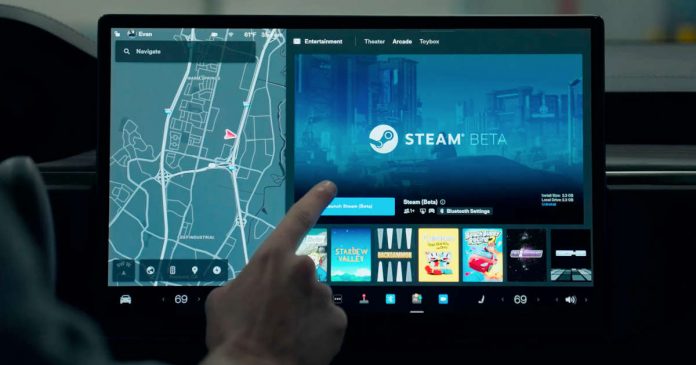
The official Tesla channel has revealed a new feature of the Tesla Model X and Model S on-board computer, which is now integrated with the Steam gaming platform. Tesla cars already had an integrated gaming service called Tesla Arcade, and games like Stardew Valley that didn’t require much hardware were already available.

Tesla’s freshly announced Model S and Model X are loaded with AMD’s Ryzen CPU and the GPU Navi 23 based on the RDNA2 architecture in the newest graphics cards. Its power is said to be on par with the PS5, and with an integrated Steam gaming platform, the Tesla cars will allow users to play high-end games like Cyberpunk 2077.

After a long time to get to the beta, this ambitious plan has finally come to fruition. As part of its holiday update, Tesla has launched a Steam beta for the Model S and Model X.

Steam offers a huge library of games, and integrating it into Tesla’s EV will open up many games you can play inside your Tesla car. This will appeal to users. Particularly if you already have many titles in your Steam collection.

It’s worth noting that this update is for the new Model S and Model X only. This is because, as mentioned above, these two models are equipped with powerful chipsets.

The system is integrated into Tesla’s operating system and can be connected directly to the touchscreen to play games, watch entertainment and perform other functions. Musk also reveals that it will have more storage space, allowing more games to run simultaneously on the platform.

Automakers believe that entertainment, including video games, will become more important in the car with the advent of autonomous driving. The partnership between Sony and Honda is also focused on that. Sony didn’t rule out the possibility that PS5 could be installed in an EV.

Microsoft Ended Development Of Soundscape App And Open-Source The Code

Microsoft Soundscape

Using augmented reality and 3D audio, Microsoft has completed research on Project Soundscape. This technology allows people to navigate destinations and unfamiliar places with sound and will be available as open-source software on January 3, 2023. The application’s source code will be published on GitHub, and the documentation on how to build and use it will also be published.

Microsoft’s Project Soundscape was founded in 2017 as a unique form of navigation technology that offers 3D, augmented reality audio and an immersive experience through sound. Launched on iOS the following year, the application touts ambient sounds and audio beacons that get different audio cues from points depending on how the user approaches them. This eliminates the need to follow instructions on a small display, allowing audio to enhance mobility, broaden the navigation experience and improve accessibility.

The Soundscape will no longer be available for download from the App Store when it is open-sourced. However, those who have already installed it can use it until June 2023. The same applies to the Azure service that enabled the application, which is planned to deal with bugs and service outages during the same period. The open-source release will only support iOS, just like the original project.

Through Soundscape’s journey, one can explore many valuable experiences, such as improving mobility coaches’ abilities, understanding the role of sound in adaptive sports, and helping the visually impaired to go places and find what they need in their lives. By making the Soundscape code available as open-source software, its possibilities can be further increased.

It’s unclear what decisions were made inside the company to make this move. Open sourcing sounds good, but considering the current global economic situation, it is possible that this was done to cut costs.

Xiaomi Announces 13 Series With Leica Lens And 1-Inch Sensor

Xiaomi 13 Series

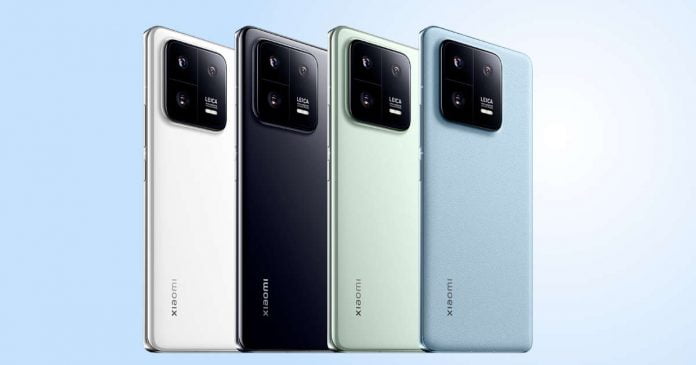
Xiaomi finally announced its flagship smartphones, Xiaomi 13 and Xiaomi 13 Pro, with Qualcomm Snapdragon 8 Gen 2 processor and new design. The high-end ” Xiaomi 13 Ultra ” was not announced this time, but it is expected to be announced later.

Xiaomi 13 is positioned as a semi-flagship model, and Xiaomi 13 Pro is a flagship model, adopting a different design language from Xiaomi. The Xiaomi 13 is equipped with a flat 6.36 inches full HD 120hz AMOLED display, whereas 13 Pro has a 6.73-inch 2K Samsung E6 standard AMOLED curved display with a refresh rate of 120Hz.

The Xiaomi 13 has glass and leather on the back, and the Xiaomi 13 Pro has ceramic and leather, both of which have IP68 grade waterproof and dustproof performance, LPDDR5X memory and UFS 4.0 storage.

The battery capacity is 4500mAh for Xiaomi 13 and 4820mAh for Xiaomi 13 Pro and supports 67W, 120W wired quick charging, 50W quick wireless charging and 10W wireless power supply.

As for the camera, Xiaomi 13 series is equipped with Leica optical lens. The Xiaomi 13 has a 50-megapixel Sony IMX800 sensor for the main wide-angle lens, a 12-megapixel ultra-wide-angle lens, a 10-megapixel telephoto lens with a focal length of 75mm (optical 3.2 x zoom), and the Xiaomi 13 Pro has a 1-inch 50mp IMX989 main camera, a 50 Mpx Samsung JN1 ultra-wide angle and a 50 mpx telephoto camera.

In addition, Xiaomi has announced that it will collaborate with Leica to build a colour database with 4700 colour models for various scenes. Users can easily shoot Leica-style images with Xiaomi 13 series smartphones.

These are limited to China launches for now. Still, since Xiaomi usually launches its flagships into the global market a few months after their domestic launch, other countries are likely to receive them in the first quarter of 2023.

The Xiaomi 13 starts at 3,999 yuan (about $570), and the price of the Xiaomi 13 Pro starts at 4,999 yuan (about $710).

How To Setup ADB On Android, Windows, Mac And Linux

Setup ADB On Android Windows Mac And Linux

When comes to customization, there is no barrier for Android mobile platform – but we users mostly limited to some apps to tweak Android devices more than using commands. There comes the usefulness of Android Debug Bridge or better know as ADB to access deep buried features on the Android platform that simply are not visible to the user.

What is ADB?

ADB (Android Debug Bridge) is a versatile and powerful command-line tool for Android users that lets you communicate with a device with commands. Yes, with commands you can root Android devices, backup and restore them, install and debug apps etc.

Now you may think, since it uses commands then definitely it’s a tool for Android developers. Partially true, ADB shell is easy to understand, but commonly developers utilize its full potential. Although, everyone can access it to troubleshoot and customize Android devices, you only have to do the proper initial setup on your Android smartphone and install ADB shell on Windows or Mac or Linux. And in this article, we will help you with this initial setup.

ADB is already bundled with Android SDK and now standalone ADB zip file is available for Windows, Mac, and Linux. So, if you are not a developer then this ADB zip file is enough for you.

Setup ADB:

Enable ADB debugging on Android device

First, we have to make our Android device ready for ADB debugging. So to setup ADB on Android, we have to enable USB debugging mode in system settings under Developer options – which is hidden by default. Follow these steps to enable Developer options and activate USB debugging:

  • Open Settings > About phone
  • Now tap on Build number seven times and you can see a quick message showing Developer options is enabled.
  • After that head back to Settings main page to find Developer options at the bottom and tap on it.
  • Next in Developer option toggle the button next to USB debugging to enable it. Don’t forget to Tap choose “Ok” in the confirmation pop-up to enable USB debugging mode.

Now we partially setup ADB, next choose your operating system and continue installing ADB.

Install ADM on Windows

  1. First download ADB zip file for Windows.
  2. Create a new folder in C: drive, named “adb” and extract files to that folder.
  3. Next Shift + Right-click on adb folder and choose the option “open command prompt here” or “open command window here“. For Windows 10 users either PowerShell or Command Prompt will open.
  4. Now connect your Android device to the computer via USB cable. Make sure the USB mode you choose is “File transfer(MTP)“.
  5. Now in the Command Prompt windows enter “adb devices” to launch ADB daemon.
  6. At the same time, a prompt will pop up on your Android device to allow or deny USB debugging access. Just tap the “Always allow from this computer” and select “OK” to continue.
  7. Now you can see, the device is listed on ADB daemon with the serial number. If it’s not, then re-enter the adb command in step 5.

Install ADB on Mac

  1. First, download ADB zip file for Mac.
  2. Extract the zip file to Desktop or any other easily-accessible location.
  3. Now open Terminal windows.
  4. Enter the command to navigate to the ADB directory, like “cd /extracted/path“.
  5. Now connect your Android device to the Mac PC via USB cable. Make sure the USB mode you choose is “File transfer(MTP)“.
  6. Once your Terminal is pointed to the same folder of your ADB tools, enter “adb devices” command to launch ADB daemon.
  7. At the same time, a prompt will pop up on your Android device to allow or deny USB debugging access. Just tap the “Always allow from this computer” and select “OK” to continue.
  8. Now you can see, the device is listed on ADB daemon with the serial number. If it’s not, then re-enter the ADB command in step 6.

Install ADB on Linux

  1. First download ADB zip file for Linux.
  2. Extract the zip file to Home or any other easily-accessible location.
  3. Now open Terminal windows.
  4. Enter the command to navigate to the ADB directory, like “cd /extracted/path“.
  5. Now connect your Android device to the Mac PC via USB cable. Make sure the USB mode you choose is “File transfer(MTP)“.
  6. Once your Terminal is pointed to the same folder of your ADB tools, enter “adb devices” command to launch ADB daemon.
  7. At the same time, a prompt will pop up on your Android device to allow or deny USB debugging access. Just tap the “Always allow from this computer” and select “OK” to continue.
  8. Now you can see, the device is listed on ADB daemon with the serial number. If it’s not, then re-enter the ADB command in step 6.

If you face any problem while setting up ADB on Windows, Mac, and Linux, do feel free to mention the issue in comments.

How To Split Your Wi-Fi Connection?

Chat without internet

There are several good reasons why you should split your Wi-Fi network. However, when it comes to it, we can do it in two different ways. Once – since most routers today are dual-band, we can split our network by enabling both the 2.4 and the 5GHz bands. Another way to split the network is to create a separate wireless network or a so-called Guest Wi-Fi.

In this article, we are going to explain how to do this and we have selected the two methods that are most convenient for the everyday user. These are separating your Wi-Fi into 2.4 and 5GHz networks and creating a Guest Wi-Fi network.

Can You Have Two Separate Wi-Fi Networks In The Same House?

The answer to this question would be YES. You can choose to have both 2.4 and 5GHz networks available or you can create a Guest Wi-Fi network as David Rigg explained in his article. In both cases, you can have two or more wireless networks in the same home that won’t interfere with each other.

Why Should You Split Your Wi-Fi Network?

First of all, most smart devices support 2,4GHz only. If you combine the 24 and 5GHz networks into one, when the device receives a 5GHZ signal for some reason, it will most likely lose connection. To prevent this from happening, we should separate the 2.4 and 5GHz networks.

Second, if you want to stream content from your computer or smartphone to your smart TV, it is recommended to connect these to the same network. Once again, switching between networks can cause a lost connection. So, connect all these devices to the same network.

Third, in terms of security, if malware spreads to your network it will affect the devices connected to just one network, the 2.4 or the 5GHz one.

And finally, we can talk about network overload. The 2.4GHz network supports a limited number of simultaneous connections, while the 5GHz one supports much more than that. So, having two separate Wi-Fi networks will help you reduce network overload.

How To Split Your Wi-Fi Connection Into 2.4 and 5GHz?

Since most routers support this option, splitting your Wi-Fi network into 2.4 and 5GHz ones is quite possible and useful. Most people choose to use one network for their IoT devices. 

The 2.4GHz network provides wider coverage but it’s slower than the 5GHz network. We can use this network for our kids’ devices, smartphones, and other wireless home devices since internet speed is not too important in such cases.

On the other hand, the 5GHz network is much faster but its coverage is smaller compared to the 2.4GHz one. It is usually recommended to use this network with devices that require a fast internet connection, for example, if you use Zoom for meetings often, then you should connect your device to the 5GHz network. 

So, it’s up to you which band you are going to choose, these were just recommendations.

And here is how to split your Wi-Fi connection to 2.4 and 5GHz.

First, you will have to access the router settings. 

Connect your device to the network. It can be a computer, smartphone, or tablet, and launch the web browser you already have on the device. Find the router IP on the sticker on the router or find the IP address on your own by following this guide. Type the IP in the browser’s URL bar and press the Enter/Go button on your device.

If the IP is correct, you will be asked to enter a username and a password. You can find these on the router sticker we have just mentioned or you can check the user manual or our router login section again. Click Login and you should see the router’s admin dashboard.

Now we have to find the right section. In most cases, you should look for the Advanced section or if you see the Wireless section you can check it out immediately. On TP-Link routers, you can click on Wireless immediately, or click on Advanced, then Wireless, and then on Wireless Settings.

Once there, you will see the Enable checkbox next to 2.4GHz and 5GHz. Check them both and complete the fields below.

Network Name (SSID) – Here you can enter the wireless network name. Make sure to name these networks differently so you can recognize which one you are connecting to. Generally, it is enough to add 5G at the end of the 5GH network.

Security – Make sure to select WPA/WPA2 or just WPA2 here.

Encryption – Choose AES here.

Password – Here you need to enter the wireless password. You can use the same password for both networks if it’s more convenient for you, but always make sure to set up a strong and unique wireless password that contains both small and capital letters, special characters, and numbers. Also, a 10 to 12 characters long password is usually enough for strong protection.

Save the changes and now you should see both networks on your device.

How To Create A Separate Network?

Another way to split your Wi-Fi network is by creating a separate Wi-Fi network for your guests and visitors. This is a good option if your router doesn’t have the option to split your Wi-Fi into 2,4 and 5GHz networks. Of course, your router has to support the Guest network feature.

The principle to create a separate guest network is almost the same. You need to login to your router admin dashboard as described above and then look for Guest Network in the menus. It will be listed as a separate section or you can find it in the Wireless section.

When you click on it, you will have the option to enable it first. After that, set up the network name. Make sure to name it accordingly so that you and the others can easily recognize it in the list of available networks.

The Security type should also be WPA/WPA2 or WPA2 and the Wi-Fi password should be strong but easy to remember.

Some routers have additional options for Guest Wi-Fi networks where you can set the available bandwidth, whether or not they can see other guests in the network and whether or not they can access your local network. 

Creating a separate guest network is an excellent security option because it protects your primary network and your guests and visitors can’t access your personal files and data, they can’t access the router settings or spread malware from their devices to other devices in the primary network.

Does Splitting Your Wi-Fi Slow It Down?

Generally speaking, your internet connection speed won’t be reduced when you split the Wi-Fi into 2.4 and 5GHz. However, the number of devices connected to the networks and their activities (streaming media content, watching Netflix or YouTube, gaming, downloading large files from the internet, can affect the internet speed for other users in the network.

Final Words

In this article, we have tried to explain why you should split your Wi-Fi network and how to do it properly. Whether you choose to split it just on 2.4 and 5GHz or you create a separate guest network, it is highly recommended to take advantage of this feature. There are many reasons for that, starting from network security, ease of use, reducing network overload, and so on.


Google Chrome Released New Modes To Save Battery And Reduce The Consumption Of RAM

Chrome Memory Saver and Energy Saver

Although Chrome is a powerful browser, it is also commonly considered a resource hog, requiring more memory than other browsers and draining the battery faster. But it’s going to change.

The current version 108 of Google’s Chrome browser, released for Windows, macOS and ChromeOS, contains a so-called Memory Saver and an Energy Saver. 

Memory Saver on Google Chrome

As the name suggests, Memory Saver is intended to reduce the use of RAM, which in turn should make browsing with Chrome smoother. According to Google, the new memory saving mode claims up to 40% or 10 GB of RAM less than the previous standard mode.

Memory Saver will reduce the amount of memory used by inactive tabs. They will only be updated when you open them, rather than in the background, as they were previously.

Google has implemented this procedure in Chrome for some time, but only in situations in which the system really only had little memory available. With version 108, this will happen more often. However, users can toggle this feature on and off at any time.

Memory Saver 1

Energy Saver on Google Chrome

In energy saving mode, the background activity of the program is reduced, as a result of which the browser begins to consume less battery. The feature is active as soon as the charge level of the battery in the device falls below 20%. Chrome will then reduce background activities and technically limit visual effects such as animations or videos on websites, the team explained.

Battery Saver

How to activate Energy Saver and Memory Saver in Google Chrome?

Activating these new features is quite easy. Google has created a specific section in the Chrome Settings menu. 

  • In Google Chrome, go to Settings by tapping on the three vertical dots in the upper right corner.
  • Now, look for the new Performance option in the left sidebar of options.
  • It will be in this section that you will find Energy Saver and Memory Saver. In addition, you can customize the experience with the additional options that each one offers.

The Performance section is being rolled out to all users with Google Chrome version 108. If you already have it, but can’t find this feature, don’t worry; it should be available in a few days.

However, options can already be activated via flags:

  • Energy Saving — chrome://flags/#battery-saver-mode-available
  • Memory saving — chrome://flags/#high-efficiency-mode-available