Home Blog Page 219

5 Must-Have Tech Tools For Successful Virtual Meetings

remote conferencing software for online classes

The global work scenario has experienced significant changes fueled by the pandemic. In the last couple of years, we saw almost all kinds of industry sectors opting for Work From Home or WFH. With that, the need for effective communication & self-management rose exponentially. 

Today, we will talk about Five state-of-the-art tools that can help you reduce work-related communication voids, ensure teams are on the same page, and conduct productive virtual meetings with added ease. Without further ado, let’s move ahead:

SlideModel:

SlideModel is the leading provider of ready-to-use PowerPoint templates on the internet. The platform houses a non-exhaustive collection of readymade templates that presenters can seamlessly download to create intuitive & quick presentations. Every template has been crafted by design connoisseurs and encompasses a pixel-perfect design. Hence, SlideModel allows you to worry less about the slide design & focus on creating quality content for the slides.

Apart from out-of-the-box presentation templates for PowerPoint, SlideModel also has a beautiful collection of 100% editable slide elements such as Diagrams, Infographics, Shapes, Backgrounds, Typographies, and much more. Therefore, SlideModel is a perfect go-to destination when you want to create captivating and moving presentations.

Zoom:

Zoom is a popular online video conferencing tool that is easy to use and highly affordable. The tool enables small and big businesses to transition easily to video. The platform offers an engaging user experience to the users along with an array of benefits. With Zoom, you can enjoy top-of-the-line features such as HD audio & video calls, screen sharing, remote control, cross-platform messaging, etc. Zoom also provides you a comprehensive and feature-rich admin dashboard to manage participants.

One should note that Zoom also provides end-to-end encryption for all sorts of communications. Both- audio & video calls are secured with 256-bit TLS encryption. Hence, companies don’t have to worry about data leaks and security breaches in between their meetings. Zoom also provides several unique features for your virtual meetings, such as waiting rooms, calendar scheduling, personalized meeting room, meetings recordings, and more.

Adobe Connect:

Adobe Connect goes much beyond a mere traditional virtual meeting tool. The tool allows you to conduct highly collaborative remote meetings. Thanks to its wide range of high-grade functionalities such as attendee management, screen sharing, polls, notes & QnA. Presenters can also organize emails, create customizable digital rooms, record and share meetings recordings around the clock.

The leading webinar software is a popular choice among companies ranging from all industries. Adobe Connect is highly used by educational institutions as well. The tool allows one to invigorate a rich, virtual classroom experience for students infused with engaging storyboards, infographics, and other visual resources. Hence, whether the goal is to conduct online meetings, training, or webinars, Adobe Connect is a valuable addition to your virtual meetings tools arsenal.

Canva:

Visuals are one of the deciding factors for the success of your virtual meetings. It becomes a task when it comes to keeping the participants engaged in remote meetings. Canva is a popular design tool that allows presenters to create stunning visuals that boost engagement of your virtual conferences manifolds. Canva allows you to assemble images, colors, fonts into meaningful building blocks for design.

With thousands of visual resources at your disposal, presenters are no longer required to start from scratch. You can transform the conventional slide content into charming visuals and embed the same into PowerPoint templates. Whether you’re a small business owner or entrepreneur, Canva can help you save time, effort and make your virtual interactions memorable for the audience.

Slack:

When it comes to making business communication simpler & more productive, Slack is paving the way for organizations of all scales. As per TechJury, Slack has become a leading team communication and chat messenger platform and is used by over 600,000 companies around the world. The platform brings aboard a plethora of benefits such as efficient and scaled team collaboration, easy administration, enhanced security, data loss prevention, and much more.

With Slack, you can create specific channels for your teams. Managers can seamlessly create an enterprise-level grid and divide the projects into separate workspaces. Moreover, you may also integrate Slack with Google Drive for effective file sharing & transfer. Other popular third-party plugins supported by Slack are GitHub, OneDrive, SharePoint, Workday, Loom, etc.

Wrapping It Up:

Gone are the days when you and your audience were in the same room. Today, with remote working becoming the new normal, businesses must adapt to new technologies to ensure growth & sustainability. Presenters need to eliminate communication gaps and ensure a smooth knowledge transfer between stakeholders remotely. The tools that we discussed today help you achieve just that. Explore today!

Alphabet’s Project Taara Transmits 700 TB Of Data Over 5 Kilometers Using Light Beams

Alphabet Project Taara

Last January, Google parent company, Alphabet, closed one of the most ambitious connection projects, Project Loon, with which they sought to provide internet through balloons located at high altitude. However, the Free Space Optical Communications (FSOC) technology with which the balloons communicated has remained in development.

This technology works as a kind of fiber optic without cables and is the cornerstone of Project Taara, the initiative of the mysterious Alphabet Laboratory X — who have taken advantage of this system to develop an antenna that uses beams of light to transmit information at super high speeds through the air, like a very narrow invisible beam.

The company carried out the first tests of this antenna in India and the Republic of Congo, and the results are now known. Some data that is quite promising regarding the future of this technology, since during these demonstrations it was possible to send more than 700 TB of data at a distance of approximately 5 kilometers.

In the same way that traditional fiber uses light to deliver data over cables in the ground, Taara’s optimal communication links employ very narrow invisible light beams to transmit data at high speed between two points.

This antenna, with a clear line of sight, can transmit data at high speeds of up to 20 Gbps, according to the company. They also ensure that a single link can cover distances of up to 20 kilometers and can be used to extend fiber networks.

The various Project Taara nodes are positioned high up so that they have a direct line of sight to each other to create a link where the light beam can transmit the data smoothly.

In addition, they are also designed to be placed in areas of difficult connection, such as sites located around forests or railways. One of the main characteristics of these nodes is that they have the ability to automatically adjust their mirrors to connect “a beam of light the width of a toothpick with enough precision to hit a 5-centimeter target that is 10 kilometers away.”

The main advantages of this technology are that since there is no cable, no time or money is wasted, and there are no problems involved in digging trenches or laying cables along the poles. FSOC boxes can simply be placed miles apart on roofs or towers, and the signal, transmitting directly between them, can easily traverse obstacles such as rivers, roads and railways.

During Project Taara’s 20-day pilot test in India and Africa with a sender and receiver, it was shown that the antenna works remarkably and is a cost-effective and fast way to bring high-speed connectivity to remote areas.

WhatsApp Will Soon Allow You To Send Any Photo As A Sticker

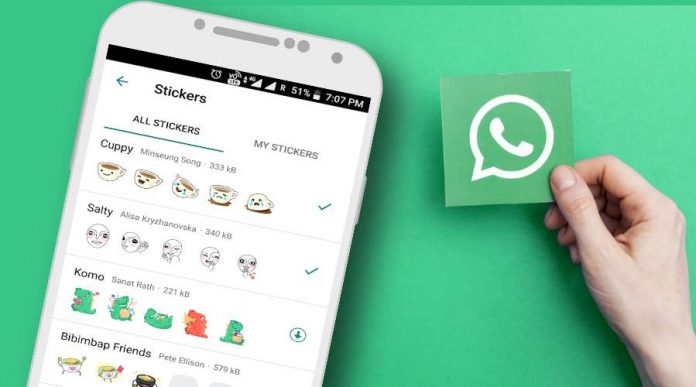
Activate WhatsApp Stickers On Android Smartphone

WhatsApp stickers are one of the tremendously popular features in the application, and many users create custom stickers with the help of third-party apps. However, soon WhatsApp will allow you to send images directly as stickers instead of depending on other apps.

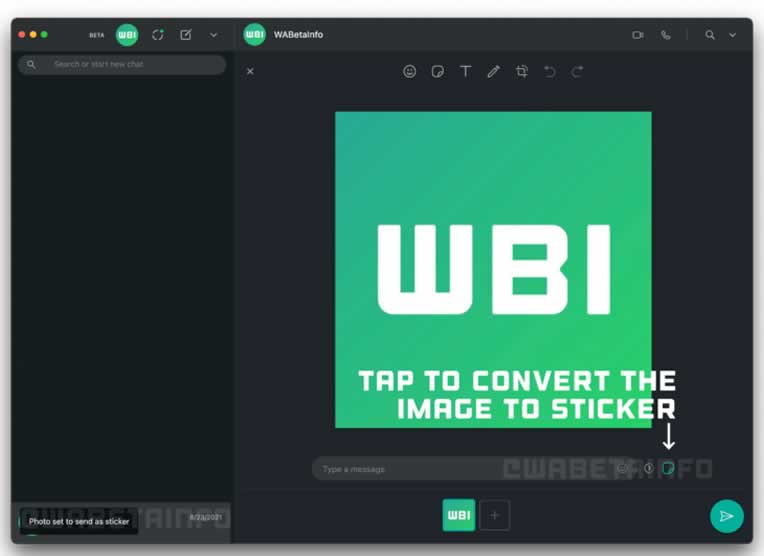
As reported by WABetaInfo, the future new beta of WhatsApp Desktop (the desktop version of the application for Mac and Windows) will add the option to convert the photos we send into stickers. Directly, in such a way that instead of being sent as a photograph, we will send it as a sticker.

This greatly facilitates the process of sending a ‘meme’ or a joke, since in general, we will have said content saved in the form of images. In this way, we will have the ability to send them directly as stickers without depending on third-party applications and speeding up everything.

This new function reaches one of the first betas of the desktop application. The process is very simple. When sending an image, a button will appear above it to send it directly as a sticker. And it is that in this way, the image will become an independent sticker and not a multimedia file, having a smaller size.

WhatsApp Send Any Photo As A Sticker

It should be noted that the function, for now, is exclusive to the PC version of WhatsApp. Also, as it is in development, it has not yet reached beta versions, although that could happen soon.

Recently WhatsApp has introduced end-to-end encryption on backups and also working on implementing transcribing voice messages.

Best Practices For HIPAA Compliant Messaging and Chat

HIPAA Compliant Messaging

Every day, more people chat to talk to friends, family members, and acquaintances. Besides convenience, instant messaging and chat services also provide an additional layer of security. Thus, this additional layer of security makes using those services attractive for doctors, healthcare facilities, clearinghouses, and other organizations who need to communicate sensitive data with their patients and clients.

But no matter how compliant a messaging app or chat service to the guidelines in the Health Insurance Portability and Accountability Act (HIPAA) is, most of them still have the risk of experiencing data breaches. That’s why there are still essential steps you might want to take to make those messages as secure as possible.

This article looks at those steps and other precautions you should consider and take whenever using HIPAA compliant messaging and chat services.

What Is HIPAA?

HIPAA is a US law that imposes requirements on organizations to take measures in safeguarding the medical information of their clients. Under the HIPAA Privacy Rule, all patient medical records, primarily Electronic Protected Health Information (EPHI), are protected under federal law. EPHI is identifiable health information transmitted or maintained electronically.

HIPAA compliance is mandatory if a covered entity organization intends to communicate with their clients that may involve EPHI through chat, email, and any digital form of communication. The term ‘covered entities’ refers to health care clearinghouses, health plans, and healthcare providers that transmit any patient information electronically.

To prevent getting your organization in trouble because of HIPAA complaints or incidents, you may want to follow these ten practices below.

1. Check Whether The App Or Service Meets HIPAA Compliance Standards

The first thing to do is check whether the messaging or chat app you’re using is HIPAA compliant. Remember that even if the developer or service provider says that their software or service is encrypted but don’t mention that it’s HIPAA compliant, don’t use it. Only use apps and services specifically designated as ‘HIPAA-compliant’ that are deemed to meet healthcare organizations’ necessary level of data security.

2. Get Confirmation Of Security Measures By The Developer

It’s also advisable that you confirm the security measures taken by the developer or provider. You can do this by checking their website or contacting them directly with questions regarding how they keep your data secure.

If it’s unclear if your messages are not stored securely, the app or service might not be HIPAA compliant. Stop using it as you might be risking a HIPAA violation if you continue to use it.

3. Limit Employee Access

HIPAA compliance begins with limiting employees’ access to client-related information. This means that they can only access the information they need to perform their job. Because of that, healthcare facilities and all other covered entities should get a messaging or chat solution that can limit and restrict access to select users.

4. Track Message History

To retain HIPAA compliance, you need to record all messages sent and received each day by your healthcare organization. Recorded messages should include the sender’s name, job title, message type (text or photo), sent timestamp, and any contact details. These messages can then be stored and maintained as a record should legal action be required in the future.

5. Encrypt Messages

By default, HIPAA compliant apps should run on an encrypted connection. To further protect your organization’s HIPAA compliance, encryption makes messaging apps and chat services secure. It can ensure third parties can’t access or tap on patient data without the necessary permission.

6. Block Email Forwarding

When it comes to HIPAA compliance, ensure that you prevent employees with access to sensitive information to forward emails outside your organization’s email system. Only a select few should have the privilege to forward or send emails outside your company’s email system.

HIPAA Compliant

7. Business Associate Agreement

Your business partners might need to access EPHI through text messages and chat services for some medical facilities. To give them access without compromising your organization, you can outline a Business Associate Agreement (BAA). A BAA is a non-disclosure agreement (NDA) used by HIPAA compliant organizations.

The BAA establishes that any third parties, such as messaging apps and chat services, should only access patient data for exclusively business-related reasons and should only disclose EPHI when it’s necessary to carry out specific tasks.

8. Audit Trail

To ensure that you maintain HIPAA compliance, organizations should ensure that audit trails are in place. Auditing activity of users means that all messages and chat services should be monitored, with a record of the users who have sent or received sensitive information. Tracking chat logs greatly reduces the risk of HIPAA violations, as it makes it easier to identify any unauthorized access attempts.

9. Disable Chat Transcript Option

Since most web chat is inbound only, you should disable the option for a chat user to request or send a transcript of their conversation. Enabling this option may pose risks to your organization, as it means that patient data could be exposed to a third party.

Additionally, employees must only share EPHI that they’re authorized to use, so make sure that chat transcript options are disabled on all messaging and chat tools. Disabling the chat transcript option prevents sensitive information from being shared outside of your organization’s secure messaging system.

10. Verify Identity Of Chat Users

When it comes to HIPAA compliance, you should only allow access to your chat system by employees who have been verified using various verification systems. Doing so reduces the risk of unauthorized access attempts, as employees must undergo a rigorous authentication process before being granted access to your chat system.

Conclusion

Having a HIPAA-compliant chat system in place can help your organization to share patient data securely. However, having a HIPAA-compliant messaging or chat system alone doesn’t make your organization compliant. These tools can only support organizations in maintaining HIPAA compliance. As such, you must understand what HIPAA-compliant messaging and chat services can do for your organization and how they support your current compliance efforts.

The most important thing you can do is establish a secure messaging policy for your organization. This policy should cover all aspects of your secure messaging system, including technical security features and user authentication. Only with a clear understanding of how to use the technology in a compliant manner will you maintain HIPAA compliance.

Microsoft Office 2021 Will Be Released Together With Windows 11

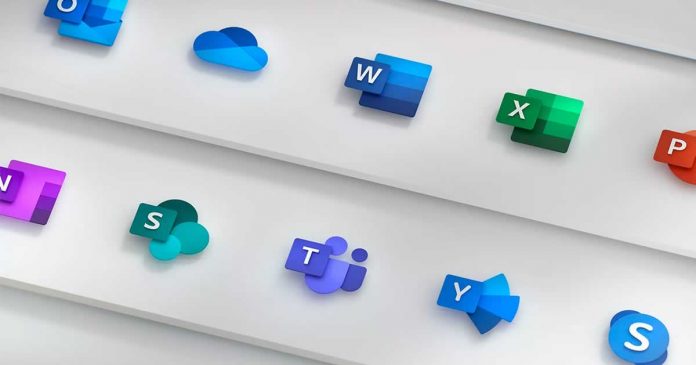
Microsoft Office 2021

Microsoft will release Office 2021 to the general public on the same day as Windows 11, on October 5, 2021. The Office 2021 LTSC (Long Term Servicing Channel) is already available as a download for companies with a corresponding volume license.

Office 2021 LTSC is independent of Office products available through Office 365 and is available to company administrators to download and deploy to users.

In addition, Microsoft is already providing its business customers with the new project management software Project Standard 2021 and Project Professional 2021, as well as the visualization software Visio LTSC Standard 2021 and Visio LTSC Professional 2021 outside of existing subscriptions.

On October 5, not only Windows 11 but also the regular Microsoft Office 2021 will appear as a purchase version for private users, freelancers and small businesses.

According to a post in the Microsoft 365 blog, Microsoft would like to announce more information about Office 2021 soon. In addition to a dark mode, the Office programs are to receive a new standard font for the first time since 2007 in the foreseeable future. Among other things, Office 2021 is to take over the design elements and icons known from Windows 11.

Inspiration4: SpaceX Marks A New Milestone In The Private Space Race By Sending The First Civilians Into Space

SpaceX Inspiration4 First Civilians mission

A new milestone for SpaceX and Elon Musk — it is already the first company to take civilians into space.

The Inspiration4 became the first orbital launch of a new generation space race whose crew is composed entirely of civilians. The Crew Dragon capsule used for the Inspiration4 mission housed 4 civilians for 3 days. Providing them with everything they need to live with the right comforts. This time, the Crew Dragon capsule has a unique modification, a glass dome that will allow you to admire the space in all its splendour.

During takeoff, the dome placed on top of the spacecraft has been protected, but as soon as it has reached orbit, it has been uncovered. As SpaceX has explained, this dome is the largest that a spacecraft has ever had.

The launch occurred at 20:02 EDT on Thursday. Four people on the SpaceX spacecraft for the Inspiration4 mission are Jared Isaacman, founder and CEO of the payments company Shift4; Chris Sembroski, Lockheed Martin employee and US Air Force veteran; scientist Sian Proctor and Hayley Arcenaux, St. Jude physician assistant and childhood bone cancer survivor. They will remain up there for 3 days conducting scientific experiments.

SpaceX Inspiration4 First Civilians mission 1

The live broadcast shows the successful launch of the spacecraft that will circle the Earth 50 times before falling back into the atmosphere. After launch, SpaceX’s Falcon 9, which serves as a shuttle to take spacecraft into space, has returned to Earth, as usual, to be reused in the future.

Right now, the four SpaceX civilians are orbiting at an altitude of about 580 kilometers. They will live together for three days in the space of 37 cubic meters, the total interior of the capsule. SpaceX has calculated that they will make landfall again on September 18, off the coast of Florida.

Each of the four space tourists has an iPhone 12, an Apple Watch Series 6 and an iPad mini 4 to monitor their vital signs and analyze the impact that the trip has on their health and fitness.

The trip has caused so much excitement that Netflix has collaborated with SpaceX on a documentary series that can be seen throughout the month of September. 

How to Use Tech to Increase Personal Productivity

online writing service

If you’re having trouble being productive during the day, it’s possible that you’re using technology wrong. In fact, you’re probably letting technology distract you from your work rather than utilizing it as a force for greater efficiency and output.

4 Tech Tips for Boosting Productivity

While technology is often the culprit for distractions and lack of productivity, it can also serve as a catalyst for getting more work done. It’s simply a matter of how you approach it. 

Don’t believe it? Well, look no further than leading businesses and their increased emphasis on the strategic use of technology. More than 70 percent of companies say business productivity tools help them run their businesses more efficiently. In comparison, 81 percent agree that workforce productivity is their number one IT priority over the next year. Some 56 percent of CEOs say the progress they achieve at the hands of digital technology enables them to grow their profits.

If technology is good enough to boost the overall productivity of entire organizations, then you can bet it’s good enough to boost your own productivity. Here are several tips to help you get the most out of it.

1. Use Task Management Apps

A major part of being productive is being organized. And if you want to be organized, it helps to centralize all of your tasks, assignments, and obligations in one place with deadlines, reminders, and to-do lists. Having the right task management is very helpful in this regard.

There are plenty of task management apps on the market (many free). This includes Microsoft To-Do, Things, Google Tasks, Todoist, Evernote, and others. 

However, one of the best options is a simple solution called Remember The Milk. This app is sleek, simple, and allows you to organize tasks based on priority, due dates, and tags. You can even set up repeating tasks, sync with your calendar, and share with friends and family.

When using a task management app, it’s important to add everything to it. This includes both work tasks, personal tasks, errands, etc. By putting everything on the list, it frees up your mental capacity to actually do the work. 

2. Automate What You Can

If there’s a manual task that you can automate, you should automate it. While it may take several minutes to find the right automation tool and learn how to use it, the long-term time-savings justify the upfront investment.

As a bonus, once you get your automations set up, you can use tools like Zapier and IFTTT to connect automations for even more productivity. For example, you can set up Gmail to automatically create a task inside of Remember the Milk every time you star an email from one of your superiors at work. 

Or you could tell Google Calendar or Zoom to automatically send you a text message whenever someone cancels a meeting. You can combine almost any application with another tool. There are literally thousands of integrations.

3. Try Vagus Nerve Stimulation

Are you familiar with vagus nerve stimulation (VNS)? It’s a simple and safe method by which you activate your body’s vagus nerve (which is like your body’s “chill out machine”) and self-soothe during stressful moments. Also known as neuromodulation, the VNS process sends signals to the brain to relax and focus. Best of all, you can do it quickly and safely from anywhere (including at home or in the office).

The easiest way to facilitate VNS is through the use of a system like Xen by Neuvana (which is basically a pair of specialized headphones that stimulate the vagus nerve through targeted frequency bands).

4. Use Distraction Blockers

No matter how hard you may try to stay on task, it’s almost impossible to stay 100 percent focused when you have the entire internet available at your disposal. 

Even the most disciplined mind is prone to scrolling through social media, binge-watching YouTube clips, or visiting your favorite news website. And if you want to avoid falling victim to these time-sucks, you may need to download a distraction blocking tool or focus app.

Focus apps are tools that block specific websites and/or allow you to set a schedule or timer to limit how much time you spend on distracting sites or applications. Here’s a list of good options. We recommend finding one and using it to limit the amount of time you spend on certain websites.

Give Your Productivity a Boost

Productivity doesn’t have to be as elusive as it seems. By leveraging the right technology in the right ways, you can get more done in less time without the distracting elements that typically come with apps, devices, and other solutions. 

Use this article as a launching pad for doing bigger and better things!