Home Blog Page 257

A Handwritten Job Application By Steve Jobs In 1973 Will Be Auctioned Online

Handwritten Job Application By Steve Jobs

Before becoming the person who changed the world multiple times, Steve Jobs also knocked on the doors of some companies looking for jobs. Yes, the Apple co-founder, like many of us, tried to make his way into the workplace from his youth.

Proof of this is a job application that Jobs himself wrote by hand in 1973 — presumably shortly after Jobs dropped out of his literary studies at Reed College in Portland. And that now, almost four decades later, will be put up for auction.

However, this is not the first time that this document has been auctioned. The previous occasion (2018) sold for $175,000, a fairly high figure that will most likely be surpassed in the second sale. Before that, it was valued at $50,000.

The auction will be carried out through the BidSpotter.co.uk portal. Digital bids will be sent between February 24 and March 24.

Handwritten Job Application By Steve Jobs for auction

Although the job application does not indicate the position to which Steve Jobs aspired. In the questionnaire, Steve Jobs emphasizes his experience with “computers and pocket calculators” and his special skills and inclinations in the field of “electronics technician or development engineer“. It is said that he does not own a phone. Jobs says he has a driver’s license, but not a car.

It is important to remember that, one year after applying, as early as 1974, Steve Jobs got a job as a technician at Atari. In fact, at the historic video game company Jobs became involved in the development of Breakout. At that time, he also met Steve Wozniak, with whom he began to experiment with building home computers. Jobs identified a business opportunity, and they founded Apple in 1976. The rest is history.

Effects of Cybercrime in Developing Economies: How Cyber Law Can Help

Cybersecurity tips

Cybercrimes are a broad range of criminal activities that involve computers, computer networks, or networked devices. Cybercrime encompasses computer fraud, phishing scams, theft of trade secrets or corporate data, ransomware attacks, cyber espionage, identity theft, and many other crimes. Cybercrimes can result in the loss of funds, identities, and other resources. Those that target people in developing countries can cause the most harm.

Cyber laws counteract this criminal activity, investigating and prosecuting cybercriminals. Read on to learn more about the role of cyber law and how it can help countries with developing economies.

Statistics for Cyber Crimes in Developing Countries

Developing countries tend to have cyber laws that protect consumers through online transactions that lag behind their need, according to the United Nations Conference on Trade and Development. At the time of this conference, the data on cyber laws could not be extracted from 73 countries, suggesting that online security concerns were not being sufficiently addressed.

There have also been a number of cyberattacks in which hackers or other cyber criminals targeted developing countries. For example, hackers in Canada used approximately 100,000 poorly protected computers, largely in developing countries like Poland, Brazil, and Mexico, running off with more than $44 million. In 2016, an anonymous group of hackers stole $81 million after infiltrating Bangladesh’s central bank.

Reasons for High Cybercrime Rates in Developing Economies

In the article “Diffusion and Effects of Cyber-Crime in Developing Economies” published in Third World Quarterly, author Nir Kshetri explains that there are many reasons why cybercrime rates are so high in developing economies, including:

Ease of committing the crimes – Cybercriminals can often thrive in developing economies because there are often permissive regulatory regimes and weak, if any, laws.

Lack of resources to prosecute – In many developing nations, there are simply not enough resources to prosecute these criminals. Cyber attacks and financial fraud are often sophisticated schemes that are difficult to detect. Without formal institutions or possibly not even laws in place, there may be little recourse against these criminals.

Lull in cyber intelligence – While technology can often expand rapidly, there is often a lag of competent IT skills in developing economies. This can make it easier for highly skilled organized crime groups located in developing countries to perpetrate their crimes against organizations or people who do not have the skillset to adequately defend themselves.

Lack of defense mechanisms – In developing countries, people who have computers or are connected by computer networks may not have the skills, hardware, or software to aptly protect against cybercrimes.

Economic Impact of Cybercrime on Company and Individual Levels

According to ID Strong, an identity theft monitoring and protection service, cybercrimes cause approximately $600 billion in losses every year.

Individuals can lose their personal funds and identity. This can lead to damage to their personal credit and negative repercussions for years to come.

Cybercrimes committed against companies can also result in the loss of funds and private corporate financial information. However, companies can also stand to lose much more. Cybercrimes may include security breaches of their clients’ or customers’ personal data, exposing the company to potential losses and liability stemming from such data leaks. Companies can also suffer from a damaged reputation due to such corporate attacks. They can also lose their intellectual property or have their valuable trade secrets stolen and given to competitors.

How Cyber Laws Help to Fight Cyber Crimes

Strong cyber laws can help fight cyber crimes, including financial fraud and identity theft. They provide consumer protections, as well as the enforcement potential against those who commit such crimes.

Cyber laws often do the following:

  • Prohibit specific conduct by law
  • Protect people from financial fraud and scams
  • Protect creative works by people or companies
  • Prohibit online harassment and stalking
  • Protect data online
  • Punish cybercriminals

Conclusion

Cybercrimes pose a threat to victims, especially developing countries. However, implementing appropriate cyber laws and enforcing them can help create a safe and secure online environment for all internet users.

Researchers Developed A Ring That Generates Energy From Your Body And Turns You Into A Battery

Ring That Generates Energy From Your Body

A group of researchers at the University of Colorado have developed a ring that is capable of obtaining energy directly from the body and turn the user into an electric battery.

The ring is based on thermoelectric technology. Thermoelectricity consists of taking advantage of changes in temperature to generate electricity. In the specific case of this ring, the difference in temperature between the user’s body and the air that surrounds us is used. The device’s small thermoelectric generators are embedded in a polyamine base, connected with liquid metal cables.

This surface is capable of generating one volt for each square centimeter of skin that it covers. It doesn’t sound like much, but the researchers think it will be enough to power devices like activity bracelets or watches.

The interesting thing is that, with this technology, a wearable would not need a battery to work, at least the simplest ones initially.

The greatest potential it has is that these generators can be easily linked together, increasing the electricity generated directly; They estimate that a device on the wrist could generate about five volts.

The base on which the generators are is basically an electronic skin, based on silver nanoparticles that is capable of repairing itself thanks to the ease with which the chemical bonds of its components are formed and the energy obtained by the device itself. Furthermore, the device is completely recyclable.

The next step will be to create cheaper and more reliable devices that can be integrated into future wearables.

Emortal: The Startup Seeks To Protect Your Digital Legacy When You Die

Emortal

What happens to our digital legacy when we die? That is a question that we constantly ask ourselves, and each company addresses it in a different way.

And Emortal is a startup based in the United Kingdom that seeks to protect your photos, videos, and digital information after your death.

Emortal uses Google’s architecture to store our digital archive in the cloud. The company offers to convert the content to the latest file format. This would ensure that our memories would be played immediately regardless of whether the codec or file extension is out of date. Likewise, it guarantees that the content will be accessible from any device.

The company seeks that our digital memories last over time, and for this, it will carry out a constant organization of the content to update it when necessary. The file will be safe, and only those you choose will have the ability to view the content.

Other platform options include future scheduled messages, personalized albums, a genealogical tree for family members, and a safe for storing passwords or sensitive documents.

The startup has received the support of Vint Cerf, known as the Father of the Internet, who invested a considerable sum of money. In addition to Cerf, Emortal managed to raise 2.7 million dollars through crowdfunding on the Crowdcube platform.

According to TechCrunch, Emortal will launch during the third quarter of 2021 in the United States and the United Kingdom. To use it, users must pay a monthly fee of 5.61 euros. It is unknown if there will be more subscription tiers, although we assume that the company will offer it to suit the needs of each digital legacy.

What are the features of two-way radio?

two-way radio

The term two-way radio is an innovation that permits people to stay in touch with one another utilizing radio waves. Every client is given a radio unit that sends and gets sound and information sent over the radio waves. You may think that it simply sounds like a modern phone, but in case of disastrous situations, internet or mobile communication is likely to go down; however, the two-way radios will continue to work and keep people connected. Hence, what may seem like an old-school tech still has plenty of space in the modern world.

The two-way radio systems vary greatly in secondary or optional things they are capable of. Despite the ability to communicate with each other at a distance, some features may come in handy for wet weather, open spaces, night trips, and other conditions. It has enormous features that compel people to use it.

Some, such as safety features, might be essential if you have employees who work in hazardous or remote locations. Others simply make communications more efficient and convenient. If discretion is important, check out some of the latest two-way radios review and look out for radio with good privacy features. Here are some of the common and most important features found on two-way radios.

Safety Features

Crisis Alert

On the off chance that an administrator needs to send a quick and critical solicitation for help, the press of only one catch can trigger a call for help. Radios with the Emergency Alert component have either a committed “emergency signal” or a catch that can be customized to play out this capacity.

Solitary Worker

This wellbeing highlight expects administrators to check-in at specific time frames. On the off chance that the client doesn’t check in inside that time, an alarm is set off.

Man Down

This element can be valuable for administrators in perilous or raised zones. The radio’s settings can be changed to identify movement or dormancy, just as the level of point of the radio. The Man Down component sends a notification to the client to change the radio after a time of idleness or if the radio surpasses a set point. On the off chance that the client has fallen or is oblivious and can’t react to the ready, the radio communicates a crisis caution to find support. This is a helpful extra element to the Lone Worker alert.

Naturally Safe

If you work in a risky climate, the smallest flash from an electrical gadget, for example, a radio, can trigger a blast. Naturally protected radios are fixed tight to forestall this.

Association Lost

The radio will screen its association status and advise the client when they move out of reach. At the point when the association is restored, the client will be told once more.

Convenience and efficiency features

Double simple/advanced modes

This element empowers clients of advanced two-path radios to speak with both simple and computerized radios, exchanging to and fro between modes on a case by case basis.

Text informing

Text informing is accessible on some advanced radios. It’s a helpful component for sending data that may be hard to recollect by using a sound message or that should be put away for reference, for instance, addresses, chronic numbers, or telephone numbers.

Sound message recording

This is a helpful element that empowers the client to record and store short approaching sound or record their short message, which can be shipped off various radio clients at the same time.

Guest ID

At the point when a radio sends a voice message or an alarm, the administrator’s ID is shipped off all radios with a presentation screen. Control rooms additionally regularly have base stations with a presentation screen to recognize the guest. IDs can be alphanumeric and can likewise be changed by re-programming the radios.

Hands-Free (headset uphold)

This sans hands permit you to continue ahead with other manual undertakings while you keep in contact with different clients. Headsets with a VOX-viable amplifier will start communicating when you talk without squeezing the press-to-talk button.

View Screens and Keypads

An LCD screen permits clients to see channels, call up put away data and explore through the radio’s highlights. Keypads empower text highlights and on specific radios, can be utilized to associate with standard telephone organizations.

Protection and security highlights

Advanced encryption

Most advanced radios have encryption worked in so other radio administrators can’t tune in to your interchanges. It’s the most secure protection included.

Voice reversal encryption

On simple radios, voice reversal encryption scrambles the substance of a transmission – this is less secure than advanced encryption, as programming is accessible for descrambling transmissions.

How to avoid downloading fake PC Optimizer?

PC Optimizer

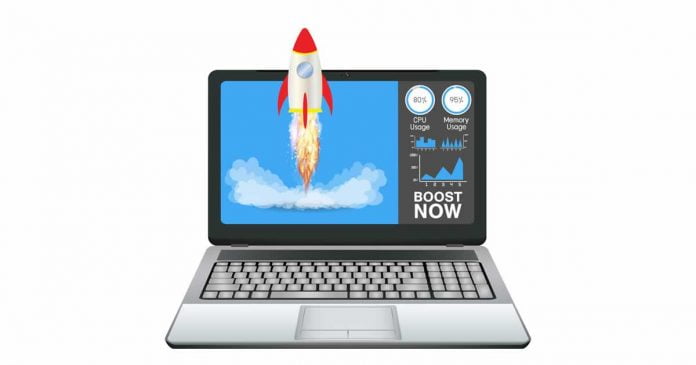
With the operating system and hardware becoming advanced throughout the years, there is always a question of whether or not PC optimization software is required for tuning up the computer. And with cybercriminals using optimizers to spread their malicious codes, users are more skeptical about downloading them.

A year back, I got the Advanced SystemCare optimizer to speed up my old computer. However, a question was always on mind whether Advanced SystemCare is safe or not. Such is the reputation of PC optimizers in the market.

In this post, we would discuss more about PC optimizers, whether they are worth buying, and how to avoid fake PC optimizers.

What are PC Optimizers?

PC Optimization Software or PC Optimizers are specially designed software that can clean the junk and fix few more performance issues to speed up the computer. A basic optimizer can help you automatically clean up your trash folder, outdated registry entries, caches, and other non-essential system files. Some advanced optimizers can have added features such as fixing your broken registries, automatically updating the software and drivers, applications uninstaller, and recovering the accidentally deleted documents.

Many people confuse PC optimizers with security programs. Although they have quite a lot of similarities, PC optimization software are different from the security programs. Security programs like antivirus or antimalware are basically meant to find out and remove the system vulnerabilities, while PC optimizers are used mainly for cleanup and speeding up the system. Though antimalware programs can also be said as optimizers since they too remove rogue applications and files and thereby clean up the PC. Some advanced security programs also come with an in-built optimizer tool.

Are PC Optimizers of any use?

You now know the function of a PC optimizer; the question now is whether you need it on your system?

Back when computers used to run on Windows 95 till Windows XP, the OS was not that advanced, and hardware was also used to be slower. At that time, the PC optimization programs were at their peak. Using the optimizers, the Windows users used to get significant results. It used to speed up the computer, making working on it more comfortable.

However, the modern OS, i.e., Windows 10 or even 8, are much more advanced than their previous counterparts. Windows 10 comes with in-built optimization features such as disk-clean up, add or remove programs, disk fragmentation, and monitoring tools to check for any irregularities.

Users can also perform more optimizing tasks manually, such as removing broken registries, cleaning junks by deleting temporary files, and clearing Recycle Bin.

Although PC optimization applications can perform all these tasks in just a few clicks without the user’s intervene. So, if you are someone who is new to computers or don’t trust your manual skills to optimize your PC, then the PC optimization software is right for you.

How to avoid fake PC Optimizer?

Since PC optimization applications are always in huge demand, cybercriminals take advantage of this and release malware programs on the internet in the name of PC Optimizers. In the greed of getting optimizers for free, many users download the infected, fake ones and infiltrate their system with a malicious program or file.

To avoid getting a fake optimizer for your system, there are certain factors you can check for before downloading the app. Here is the list for that.

Installation Way

A fake or infected PC optimizer would suddenly appear on your system without you installing it. It might get installed through a bundled software or shareware. The installation of such apps is hidden in the installer’s advanced settings because most people ignore that while installing a program.

On the other hand, you can only install a legit optimizer by downloading its installer from the official, reputed sites. They don’t just suddenly appear on the system. The installation is transparent and does not begin without the user’s initiation.

Working Way

A reputed system optimizer provides users with full flexibility on its working strategy. Users can customize their settings according to their needs and exclude what they don’t want to optimize. The legit PC optimizer doesn’t cause any trouble to the system’s working because that is the opposite of what it is meant for. They run only when initiated by the user or at a particular period. The legit program won’t continuously disturb the users with pop-ups and notifications while they are at work.

The fake optimizers do the opposite of what they are designed for. Instead of freeing up space by deleting broken registries, they create new registries so that they could initiate themselves at the system startup. The users have no control over their settings. The fake PC optimizer would also show fake alerts and prompt users to buy the premium version for full optimization.

Uninstallation

If you are not happy with the working of the authentic PC optimizer or if you don’t require it anymore, you can easily uninstall your system. A legit program would completely delete from the system without leaving any debris.

A fake optimizer, on the other hand, is very difficult to remove from the PC. Once it gets into your system, it might remain hidden on the system even if you uninstall it. It can even block the antivirus programs to stay undetected from them. After the uninstallation, its infected remains won’t leave the system and keep disturbing the work.

Final Words

Unlike the older times, PC optimizer does not have much usability today. However, they are still popular among users to fix frequent issues and speed up the PC. As said, such programs are meant only for naive users.

If you search for the optimizer on the internet, you will find more fake ones than authentic ones. So, it is easy to mistake a fake application for the legitimate one. However, by keeping the points discussed in this post in your mind, you might save yourself from a malicious attack and fraud.

Making You and Your Employees’ Lives Easier

Business collaborations

When running a business, it is essential that you have a place for your employees to go for all their needs. Making sure your employees are happy and up to date on what is going can only lead to good things for your business. When your employees feel appreciated and knowledgeable about their workplace, it will make them give your business their all. When employees are invested in your company, it will make your company that much better. 

What does a thriving company mean for you? It means bigger profits, and bigger profits mean nothing but good things for you, your business, and your employees.

What is HR Management Software?

HR software is the online answer for keeping track and maximizing the day to day human resource tasks and all the HR goals for your business. Using HR software makes it easier for either you or your HR team to make better use of your time to make you more productive and profitable. HR software has made up a lot of ground since it was first introduced. In today’s world, most HR software is based online, easily synced with other software, and can be customized to fit what you and your business need the most; plus it is very cost-friendly, so it will not kill your bottom line. When it comes to HR software, there is a type for every business imaginable, so do not think your business cannot handle it.

Is HR Management Software Beneficial?

Using HR software can be very beneficial for both you and your employees. One of the biggest benefits of using it is that now you will finally be able to spend less time on not so important administrative things and allows you to focus on bigger picture ideas for your company that will allow it to grow and prosper as you want it to.

Some other benefits that having HR software include fewer errors, better record-keeping of your documents and employee data, a more streamlined process, constant feedback, precise analytics, and making sure you and your company are compliant with all workplace regulations. Maintaining your employees’ salary is a big feature of hr management software that a lot of business owners like to use. It keeps your employees’ information all in one place, so it is easier to track for both you and your employee. That is a big deal when it comes to payroll processing and making sure your employees get their payments on time.

In the end, while it takes a lot to run a successful business, there is a lot of software out there that can help lift the burden a bit. While HR may not be the first thing you think about when running a business, it is a very important aspect of it. Keeping your employees happy is vital to your success. If you are unable to keep them happy, no one will work for you. If no one works for you, your business will never grow. That is something you cannot afford.

Setting Up Your Own Home Server With UCS

programmer managing server

You’re looking for a way to set up your own private cloud for your family or friends, including a mail server, calendar, and file sharing capabilities? You’re looking for an alternative to Gmail, Google Docs, and Dropbox, which is not only open-source but also guarantees that control over all your data remains with you alone? It’s not that complicated, really. 

Now, you’ve probably heard that Linux is the preferred operating system in this case, but what if you’re a Windows or macOS user? In this article, we’d like to introduce Univention Corporate Server, a Linux system with a graphical configuration interface and an included App store in which you find around 90 further applications from well known open-source vendors, providing easy and fast access to mail, video conferencing, cloud services, chat programs, password management, and many other services– an ideal open-source operating system for your own home server. And don’t worry: you don’t have to stop using Windows or Mac if you don’t want to. 

After describing the installation process, we’ll give a quick overview of the included system administration tools. We’re also going to show how to install and upgrade software and how to share files with other users by integrating Nextcloud in your UCS environment. In the end, you’ll find some advice on how to set up your own mail server and links to the UCS documentation. 

Please note that this is an exemplary setup only. The installation wizard is very capable and should guide you through the installation process smoothly. However, if there appear to be any obstacles, you will find answers to many questions in the Univention Help Forum. You can also ask individual questions there, of course. 

Univention Corporate Server: A good Choice

Univention Corporate Server (UCS) is a Debian-based enterprise Linux distribution with an integrated management system for central and cross-platform administration of computers, users, and services. While it is mainly used in professional environments, private users can also benefit from its features since it’s really easy to set up and administer. Here are some cool features of the Open Source operating system:

  • Graphical administration in your preferred web browser
  • App Center for simple installation of about 90 applications e.g. Nextcloud, Rocket.Chat, OpenProject, Open-Xchange, SuiteCRM, and many more 
  • An online portal for easy access
  • Simple integration of additional services via Open Standards like SAML and OpenID Connect for Single Sign-On
  • Identity Management for central administration of users/groups and their permissions
  • Network Management including DHCP and DNS
  • Client and Infrastructure Management for Windows, Mac OS X and Linux Desktops or Servers (including Active Directory compatible Domain Services)

In Univention Corporate Server, there is no need to fiddle with configuration files in a text editor, although you can do this if you want to. Most users should be happy with the web interface for installing apps, managing domains, computers, printers, user accounts, network shares, and more. UCS can operate as stand-alone distribution but can also be your main server and manage other Linux, Windows, and macOS computers.

What you need

The first question most people ask is: “Do I need a physical machine to run my own home server?” Well, no, you don’t – there is always the possibility to rent a virtual or dedicated root server from a hosting company. If renting a server from an external provider is not an option, and you don’t have a spare computer, then you can run UCS as a virtual machine on one of your other machines. For this article, we’ve decided to install Univention Corporate Server in our local network on our own hardware. A computer with 2 GB RAM and 10 GB on the hard drive should be good enough, but you probably need more space if you’re planning to store photos, videos, and other documents.

Keep in mind that running the server on your own network does give you more control over your data but is not ideal if you frequently access the machine from the outside over a slow internet connection. If you’re planning to access your own server from the Internet, you need a broadband internet connection with enough upload bandwidth and a public IP address as well as a corresponding DNS entry:

  • A public IP requires the configuration of your router so that it can pass on requests to your local UCS server. The configuration depends on the router and often also on the Internet Service Provider. For most routers, you should be able to find HOWTOs online.
  • A publicly resolvable DNS entry is available from providers like Free DNS or similar.
  • A publicly resolvable DNS entry is available from providers like Free DNS similar.

There are plenty of tutorials on the web about public and private IPs, about port forwarding and opening ports on your router/firewall, so we won’t go into detail here. Let’s get started with UCS!

Downloading the Image and booting the Installer

Go to the UCS download page and download the ISO image, which is available for the amd64 architecture (64 bit). You can burn a DVD or create a bootable USB medium to install Univention Corporate Server on a physical machine. Alternatively, use the ISO image to install the operating system on a virtual machine. The UCS download section also offers pre-installed images for VMware and VirtualBox. The UCS installer includes support for the Unified Extensible Firmware Interface (UEFI) standard and can start systems with activated SecureBoot. Make sure to adjust your BIOS settings to boot the computer from DVD or USB.

language-settings

After selecting language and time zone, the installer will help you to partition your hard disk and then install the base system. In most cases, you can stick to the default settings. That includes the automatic network configuration via DHCP. Once the base system has been installed, the actual UCS configuration begins.

base system

Configuring UCS

First, the installer will ask you to select your domain settings. You can create a new UCS domain (default), join an existing Active Directory domain, join an existing UCS domain or skip the domain configuration. In most cases, the default settings are fine – since you’re probably installing the first and only UCS machine in your local environment, select “Create a new UCS domain.” The following dialog asks for your name and a valid email address to where your personalized license key will be sent to.

The actual activation of the UCS license happens later, in the web-based administration interface. You don’t need to pay for the license: UCS is not just Open Source Software (GNU AGPL), but also freely available in form of the UCS Core Edition. For more information about the license models, please visit the Univention website.

new-domain

Next, enter the hostname: the first field expects the fully qualified domain name (FQDN) of your UCS machine, and the second field (LDAP base) is suggested based on the FQDN’s settings. The fully qualified domain name is the name under which your computer can be accessed in the network. Since many UCS services depend on this setting and it’s not that easy to change this at a later point in time, you might want to put some thought into this. For a single Home Server, which shall be made available using the above mentioned DDNS services later, we recommend to use the FQDN registered in the external DDNS service.

In the “Software configuration” dialog you can select the first few services to be installed on your UCS machine. We’ve decided to install the graphical desktop environment (KDE) and the “Active Directory-compatible domain controller” so that we can set up file sharing in the local network later. Don’t worry about forgetting something important – it’s quite easy to install additional apps and services later on.

software-select

After hitting “Next” the installer will present you with a summary of all settings. By default, the box “Update system after setup” is activated which means the installer will download and install all the latest patches, errata and app updates after the initial setup. If your internet connection is slow, feel free to skip this and install available updates later.

summary

Depending on your hardware and the speed of your internet connection, this will take some time. Click “Finish” to reboot your machine after the installation.

Quick Overview: Portal and Univention Management Console

After you’ve restarted your UCS computer, log in to start the graphical desktop environment. Enter “Administrator” as your username and the root password you configured during the installation. As mentioned above, one advantage of the UCS system is the graphical configuration via its web interface. To start it, click the launcher in the lower left corner and select “Server Administration”.

The web browser Mozilla Firefox now presents the Univention Portal where all locally installed applications are listed (default: “System and domain settings” and a link to the Univention blog).

portal

Click “System and domain settings” to log in (username: “Administrator”, password: root password) and enter the Univention Management Console. The UMC is the central place for web-based administration of your UCS computer. By default, only members of the “Domain Admins” group can access all modules. You don’t need to worry about this for the moment, since the account “Administrator” has been granted all the necessary permissions.

umc

 Now, before you make any changes to your UCS server, open the menu in the top right corner and select “License”, followed by “Import a new license”. Upload the license key from the file you received in an email or copy & paste it into the text field.

Software Installation and Upgrade

You can install additional software using the Univention App Center (module “Software” / “App Center”). After opening the App Center you can see installed and available software components. The applications are provided by third party vendors and by Univention itself. There is a “Search” field and you can filter the applications by using the “App Categories”. Click on an application to display a description, the manufacturer, screenshots and more.

app-center

Every time the Univention developers publish software updates or a new UCS version, you will receive a notification in the menu. Follow the link to install release updates, package updates or App Center updates. The dialog also shows if it’s necessary to reboot the UCS server after an upgrade.

software-update

Setting up your own cloud by integrating Nextcloud in UCS

In the UCS App Center, you’ll find several apps for file sharing and synchronizing. For this article, we’ve decided to install Nextcloud Hub to set up a local content collaboration platform. After selecting and installing the app, you can access your private cloud via “https://ucs.mydomain.intranet/nextcloud” in your web browser. Use your UCS credentials (username and password) to log in.

Nextcloud Hub consists of several components, including Nextcloud Files for sharing files with other users. There is also Nextcloud Talk for private audio/video conferences and text-based chats and Nextcloud Groupware which integrates a calendar, contacts, and mail. There are apps for Android and iOS in the respective app stores.

nextcloud

 If you want to send emails from Nextcloud, you need to set up a mail server first. In UCS this is not really complicated, as you will see.

Setting up a Mail Server

First, visit the App Center and install the app “Mail Server”. This will install a complete mail server including Postfix (Mail Transfer Agent, MTA), ClamAV (virus scanner), SpamAssassin (blocking spam), and Dovecot (Mail Delivery Agent, MDA). The MTA is used for outgoing mails and the MDA for incoming mails (IMAP and POP3).

The default configuration uses the UCS domain which you defined during the installation (“ucs.mydomain.intranet” in our example), but it’s possible to set up further mail domains via the module “Domain” / “Mail”. An article on the Univention blog describes how to assign email addresses to users and how to send emails to external servers and domains.

Last but not least: Installation of Let’s Encrypt

As mentioned in the beginning, making the UCS Home Server available to the Internet is a good idea to access your Files and Mails from everywhere in the world and get a real replacement for other Clpud Services. To secure this, SSL encryption is used for example for HTTPS.

SSL encryption is based on certificates, which are created while installing UCS as “self signed” certificates. By default these lead to warnings in the browser and other clients like the Nexcloud App. Via the installation of a trusted certificate with “Let’s Encrypt” you can solve that. The corresponding app can also be found in the App Center.

After installation, open a configuration mask by clicking on “App Settings”: enter here the domain(s) you registered for public access, separated by spaces, and checkmark the services that should use the certificate. In our example the certificate should be used in Apache, Postfix and Dovecot. With a click on “Apply changes” a certificate will be created and integrated into the services.

Great Learning Experience

As you can see, running your own server and offering a private cloud, mail services and more to other users is not complicated. With Univention Corporate Server, it’s simple to administer the system and install additional software – have a look at the App Center and give it a try. Here you can find many more Open Source programs, including groupware, project management, backup, and office applications. If you have any questions, have a look at the documentation. Apart from the quick start guide, there is also the handbook for administrators and a separate manual for users.