Home Blog Page 155

Apple Reportedly Wanted A Share Of Facebook’s Advertising Revenue

apple vs facebook

Apple and Meta aren’t exactly the best of friends, but according to The Wall Street Journal, the two companies were in talks between 2016 and 2018 about how Apple could make more money from Meta products like Facebook on the App Store.

The Wall Street Journal writes that some Apple executives were concerned about the fact that Meta products, which are among the most popular in the App Store, were not generating revenue for Apple. This was the reason for the desire to somehow share the income of Mark Zuckerberg’s company.

Accordingly, the Apple managers said they wanted to “build joint business models”. Specifically, for example, an ad-free subscription version of Facebook was discussed. Because Apple keeps a portion of subscription revenue for apps in its app store, this product could have generated “significant revenue” for the iPhone maker, according to the Wall Street Journal.

The companies were also negotiating whether Apple was entitled to a portion of Facebook revenue from so-called boosted posts, which allow businesses or users to pay to reach more people. Apple argued that these types of posts are in-app purchases, so it should take a cut. Meta argued that they were ads, from which Apple gets nothing.

Around the same time, Facebook is said to have considered its own privacy changes. However, CEO Mark Zuckerberg has decided to delay any significant changes to data practices so as not to impact his advertising business.

The social network has unsuccessfully defended itself against Apple’s anti-tracking plans in recent years. The group blamed the new data protection settings for declining sales.

Production Of SSDs Releases Larger Amounts Of CO2 Than Other PC Components

SSD carbon emisiion

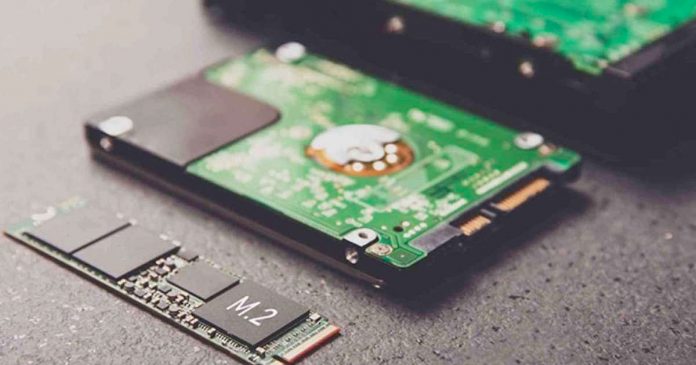
An international group of scientists noted an increased emission of harmful substances into the atmosphere during the production of SSDs. 

The study “The Dirty Secret of SSDs: Embodied Carbon” by researchers Swamit Tannu from the University of Wisconsin-Madison and Prashant J Nair from the University of British Columbia is intended to show that SSDs, for all their advantages over HDDs, are more suitable for mass storage also offer disadvantages from the point of view of climate protection.

As we know, SSDs are more preferable than conventional hard drives because of their higher speed and lower power consumption. However, the production of SSD provokes the release of an increased amount of dangerous carbon dioxide into the atmosphere.

The production of semiconductor chips requires a lot of energy, which still mainly comes from non-renewable sources. As a result, manufacturing the components of an SSD emits much more CO2 than an HDD.

The following graphic comes from an environmental report by Fujitsu and breaks down the respective share of the components in the emissions (mainly CO2) caused by a workstation system. There, the SSD is still far ahead of the mainboard, the graphics card or the CPU with 38 percent; the HDD is given 9 percent.

Global warming by PC comonents

According to the calculation, over a period of 10 years, the SSD still accounts for 87 percent of the emissions from production and the much smaller remainder from the operation. With the HDD, it is the other way around because 80 percent is used for operation and only 20 percent for production.

The researchers concluded that over the course of 5-10 years, a hard drive would consume more energy than an SSD but less than it took to build an SSD. The scientists noted that the reduction in the production of drives would lead to a shortage, so they said that it is the production process that requires modernization.

The researchers suggest that when choosing the storage medium, not only the running energy costs but also the resources required for production should be considered. A good approach to more sustainability is also to use the SSDs for as long as possible and to extend their service life, for example, through better error correction measures or the return to SLC operation with 1 bit per cell. However, this means a lower storage capacity compared to MLC or today’s TLC SSDs with 3 bits per cell.

How to Choose Which Board Management Solution Fits Your Needs

Board Management

Today, many people have to work remotely, without missing work moments and conferences. For quick communication with colleagues and superiors, you need to install a board of directors software on https://boardroommind.com/board-portal-pricing-comparison/.

One of the obvious advantages of Internet communication is the ability to exchange instant messages and video communication. Today there are a large number of programs and applications that will help you communicate in video format over the Internet, wherever you are. They can be downloaded to your computer, laptop, tablet, or smartphone.

Communication in such programs takes place over the Internet channel, and this is often cheaper than calls to mobile or landline phones. Also, the exchange of text messages in such programs is much more profitable than correspondence.

Read this guide to learn more about how to choose which board management solution fits your needs.

What to consider when choosing a program for video communication?

Before you start working in virtual board software, first learn communication and the other options on the site. And if you intend to use this type of communication quite often, it is still better to download a program or application to your computer device.

When choosing an online board meeting, answer a few questions for yourself:

  1. How many of your potential interlocutors are registered in it?
  2. Is the software adapted to different computer devices?
  3. How will you get in touch with your interlocutors: from a desktop computer (laptop), from a smartphone or tablet, or maybe you want to use all these devices to be always in touch?

If you plan to communicate with several people at the same time, you should use a program that has a video conferencing or group video chat function.

Also, look at the additional features (options) that the program offers. You can read about them on the official website of the board portal or in the mobile application store in the description of the software product.

The main criteria for choosing a service. What to pay attention to first of all?

Since software deployment and configuration is a time-consuming and costly process, choosing a board management software must be approached very carefully and take into account many factors – in order to choose exactly what is right the first time.

Solution security

If your organization works with the personal data of customers, any information leakage is a blow to your reputation, loss of customers, and, as a result, millions in losses. Most of what the market offers today is cloud-based video conferencing services. Their peculiarity is that all video recordings of meetings, call details, and personal data of users, including logins and passwords, as well as passwords for entering the conference, are transferred by applications to third-party cloud storage.

This storage can be accessed by a wide range of individuals and organizations, and the video conferencing solution vendor has no control over what happens to your data. For such companies, server solutions that can be deployed locally within the enterprise network will become a more reliable alternative. Thus, all communications of the company’s employees with each other and with clients will be stored on corporate servers, without any risks of hacking and data leakage.

Question price

Free paperless meeting solutions are suitable for ordinary users and small businesses with up to 20 employees – they usually have a limit on the number of participants in group calls. For large companies with a large staff, paid solutions are more suitable, as they can offer more collaboration tools and more participants in conferences. In addition, enterprise-grade video calling software tends to take better care of the security of its users’ communications.

Scale and duration of conferences

If you regularly hold meetings and negotiations with a large number of employees or partners, it makes sense to calculate how many people participate in them. In free cloud services, the limit is, on average, up to 50 people in one conference, and the duration is a maximum of 60 minutes. In addition, on popular platforms, large-scale events may be held with video and audio delays due to service congestion. For large conferences to run smoothly, the solution must be reliable, stable, and fault-tolerant.

Conclusion

These days, there are a huge number of video conferencing, meeting, and collaboration services available to businesses of all sizes. With so many options, it can be difficult to know which tool is best for you. That is why do not forget to pay attention to the main criteria of board portal software and choose the best one.

Best Driver Updater Apps For Windows In 2022

Driver Updater Apps

Without installing the necessary drivers for your computer system, there is no way your system will function as expected. Drivers are a key component of your computer system and must be updated regularly. Outdated drivers can trigger error messages and pop up constantly while you are working with your computer, so regular driver updates are necessary.

In recent years, updating PC drivers has become a chore. It can be time-consuming to search vendor websites, verify your Windows version, and double-check your present PC drivers. Fortunately, we live in an automated age.

So, the need for driver updater software is inevitable. Here, we have listed the top 3 driver updater tools that you can use to update your computer’s drivers. 

1. Driver Booster

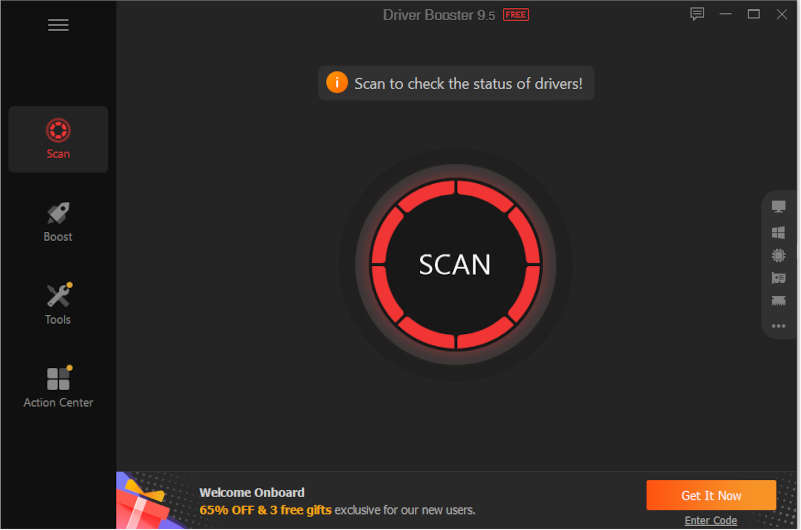
Driver Booster is the most popular and the best option with a feature-rich UI. It’s compatible with all versions of Windows and makes updating your drivers a breeze as it does all the work for you.

Driver Booster 1

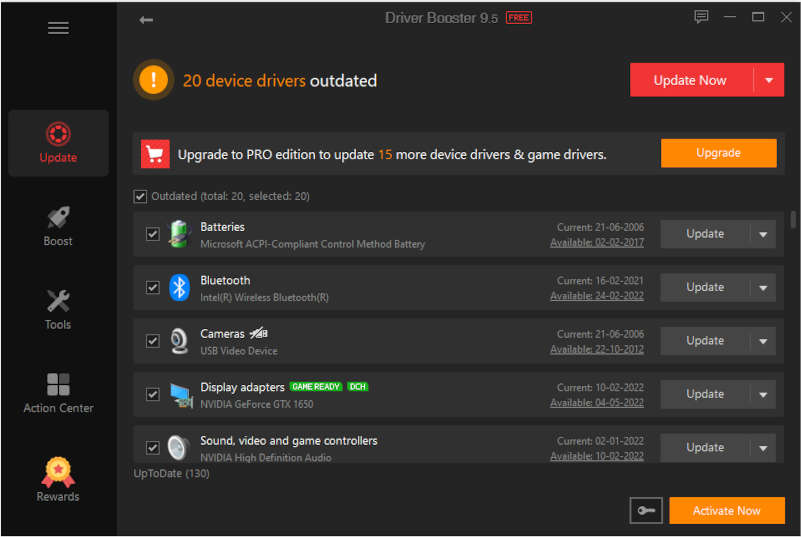
This driver updater runs automatically to find outdated drivers and supports over 6 million+ drivers, and with the pro pack, you get a collection of 8 million drivers from over 1,000 brands, so there’s a good chance you’ll find what your PC needs. When a new update appears, it will be downloaded from within the program, eliminating the need to manually get it from the official website of each manufacturer.

Before installing a driver, you can see how the new version compares to the currently installed driver. This is helpful in choosing whether to update or not. The program creates a restore point before installing the driver in case there is a problem with the installation.

An offline updater is also built-in. From the Tools tab, select the Offline option to export the driver information and open the file on a computer with a working Internet connection. 

Other features are also available: rollback drivers, uninstall drivers, ignore drivers, export the list of drivers to a text file, free up system resources using Game Boost for better performance, and view detailed system information.

Driver Booster 2

Pros

  • Automatically scans and identifies missing and faulty drivers
  • Update over 8 million device drivers and game components
  • Game component and driver priority updates
  • Update any driver with one click
  • Automatically backup all drivers and restore if needed
  • Provides offline driver updater
  • Download the super-fast update package
  • Fix common driver errors
  • Game booster
  • Compressed driver package
  • 100% secure updates

Cons

  • Can’t find anything bad except that the application advertises the company’s other software like VPN, screen recorder etc. and prompts to install other applications during the installation process.

2. Driver Talent

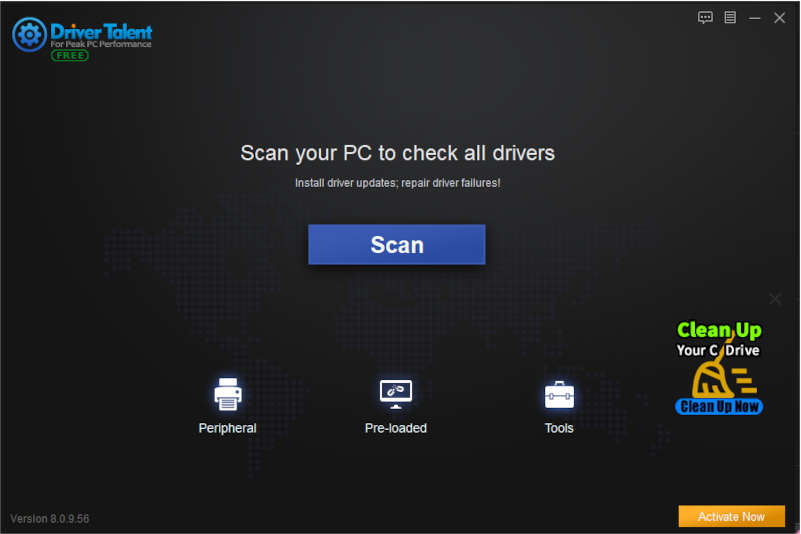
Driver Talent, previously known as DriveTheLife is an efficient program to download device drivers, so you don’t have to search the internet for official download links.

This application updates not only outdated or missing drivers but also fixes corrupt drivers and backs up all installed drivers. In the Peripheral Drivers option of ​​the program it shows the printer and USB drivers and gives a very clear indication if they are installed and working properly.

Driver Talent

Before downloading, you can see the driver size, release date, and version number to make sure you’re getting what you want. Another version includes network drivers and works offline. This is ideal if you need to install drivers but don’t have the right network drivers installed. There is also a basic hardware information utility accessible from the program’s Tools menu.

Pros

  • The program is easy to use.
  • Drivers are backed up before installation and uninstallation.
  • You can reinstall your existing driver.

Cons

  • Every driver has to be downloaded one by one.
  • Scan schedules cannot be modified.
  • Many features are shown but only available in paid version. 

3. DriverMax

DriverMax is another driver updater application for windows. Like other applications, this one also has its own advantages and limitations.

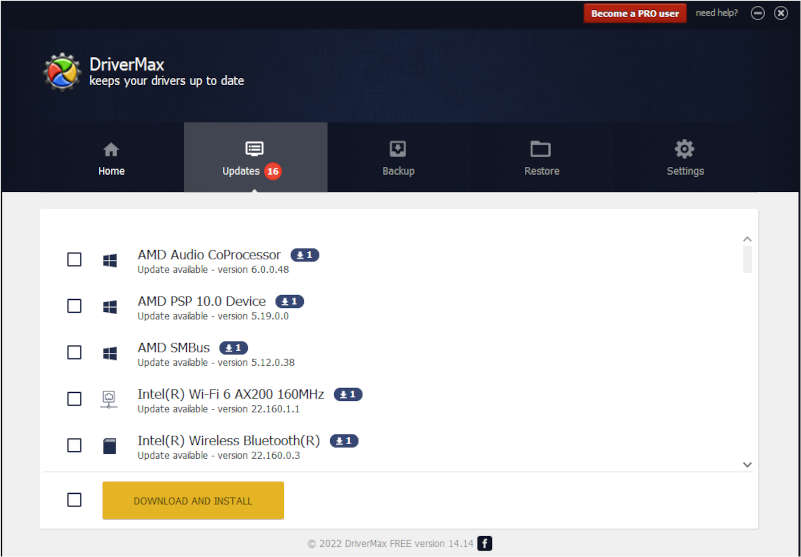
In addition to updating outdated drivers, this program also backs up all of your currently installed drivers, restores using backed-up drivers, and identifies unknown hardware. You can create a system restore point, and perform an offline scan of your PC. Run automatic scans on a schedule without a network connection.

DriverMax

When updates are found, you’ll see a notification at the bottom of the screen. You can also snooze the notification for a day if you want to check for updates later. If you decide to install updates, it will be installed automatically in the background, but it is limited to one at a time (a total of two per day).

DriverMax found far more outdated drivers than all other programs on this list. I checked the version numbers of the currently installed drivers and found that they were all valid updates. Paid users get additional perks like unlimited downloads, hourly driver checks, and automatic driver downloads.

Pros

  • Automatic driver installation.
  • You can back up all your device drivers.
  • Scan schedule customization is possible.

Cons

  • The free version only enables two driver downloads per day.
  • Every update has to be downloaded one by one.

If your system is running Windows operating system, programs like WindowsUpdateTool, and support assistant will automatically update drivers installed on your PC. Also, downloading the graphic drivers is easy with the default GPU program available on your PC. However, sometimes some drivers may become outdated, and that’s when the above-mentioned tools will come in handy also. With these automatic driver updaters, you will be able to download all the drivers in one place. 

All three applications are good, but I recommend you use the Driver booster as it has the largest driver collection. 

Google Experimenting With The Ability To Launch Cloud Games Directly From Search Results

Launch Cloud Games in Google Search

Starting this week, Google would be implementing a feature that will allow you to start a game in the cloud directly from the search results. At the moment, the feature is available only to a limited number of users.

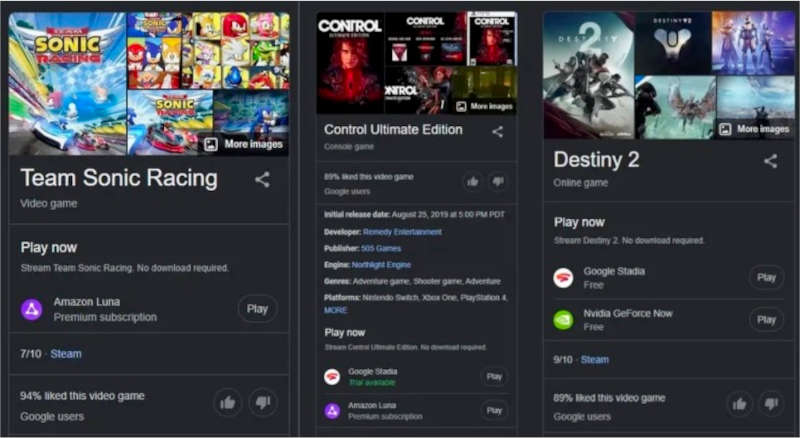
With this new feature, when users search for a supported cloud game on Google Search, they will be able to see the “Play” button right under the description of the game. By clicking on it, users will be prompted to log in to one of the available services, which include Google Stadia, Amazon Luna, Xbox Cloud Gaming and Nvidia GeForce Now.

During the testing phase, not all games in the cloud can be launched in this way. It’s also not yet clear when Google plans to make the new feature public.

Launch Cloud Games in Google Search results

Network sources say that the “Play” button can periodically appear and disappear for the same users. This means that the search giant is testing the feature and may want to gauge how users react to it. Official representatives of Google have not yet commented on this issue.

Best and Easiest Way To Recover Permanently Deleted Files From Windows And Mac

Wondershare Recoverit

Did you format your USB drive by mistake? Or accidentally deleted the file by emptying the trash or pressing “Shift + Delete” without a backup. Or a virus attacked your computer, causing the deletion of important files. There can be several such situations that can cause the deletion of important videos, images, or documents from your computer.

However, deleted information does not disappear without a trace. Erased photos, files and documents can be restored if you use special software in a timely manner. Although there are many data recovery software on the market and choosing the best one to use is a difficult task.

In this guide, we will brief you on how to recover permanently deleted files with one of the best data recovery tools available on the internet. Recoverit from Wondershare can be an excellent solution to recover all your lost data. It is available for Windows and Mac. Recoverit supports more than 1000 file types and formats. This includes Office files, videos, images, emails, archives, etc.

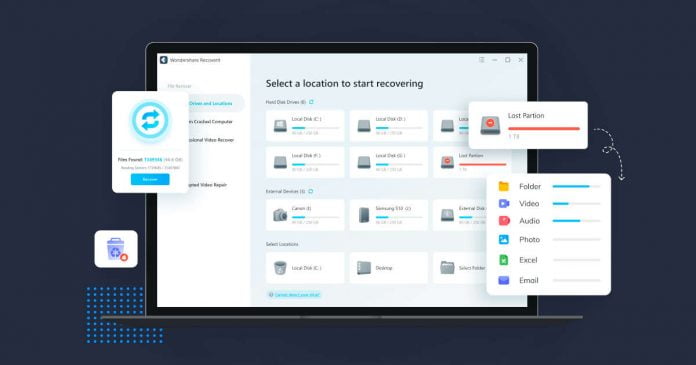
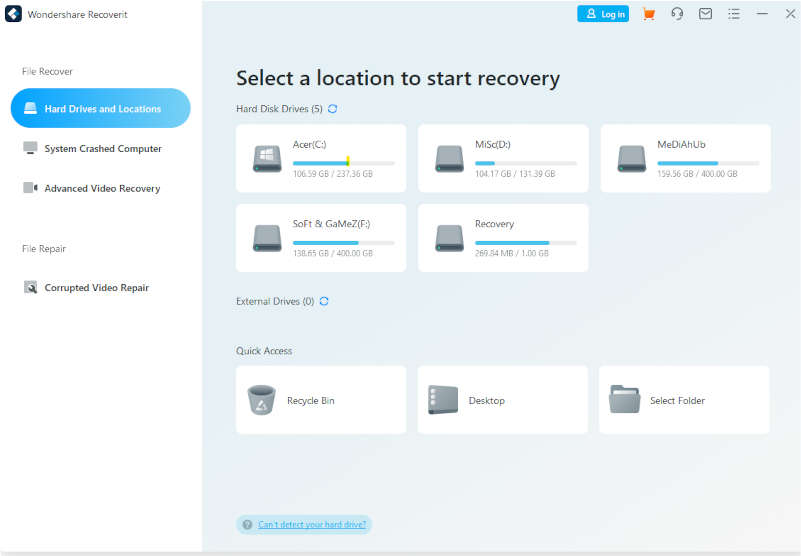
Wondershare Recoverit’s user interface is very clean and responsive. After launching the app, you will have access to all kinds of recovery options, including hard drives, external drives, and locations of your choice. You can even start recovering files from crashed computers.

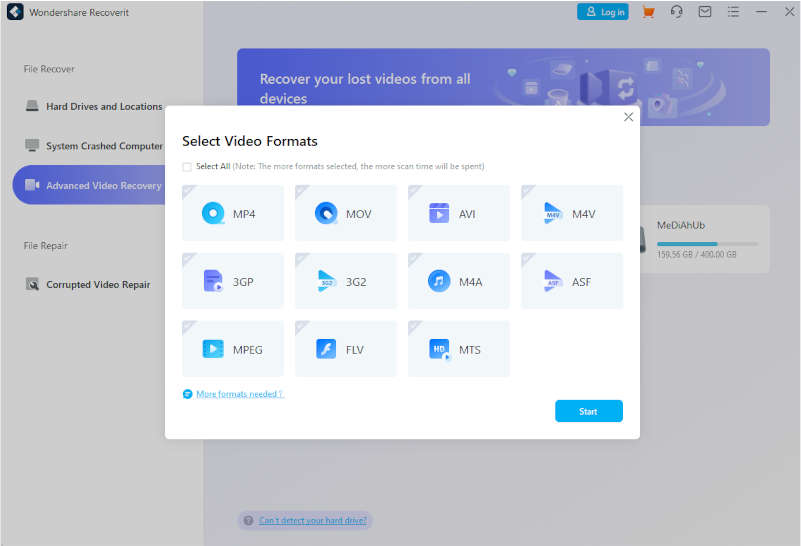
The tool can easily recover videos in MP4V, MOV, MP4, AMV and ASF formats. Also, if the audio files are in MP3, FLAC, AIFF and AAC formats, they will also be easily recovered. The recovery rate of this tool is as high as 95%, which is the highest success rate in the industry to recover data from various data loss scenarios.

Advantages of Wondershare Recoverit

Recovery solution for any file type

Wondershare Recoverit supports recovering 1000+ file formats, including all images, documents, videos and executables. Not to mention support for all known file systems NTFS, FAT16, FAT32, HFS+, APFS, etc.

Advanced Algorithms

Wondershare Recoverit’s algorithms enable it to perform searches quickly and reliably, which is done by delving into the data structure with an accuracy rate of up to 96%.

Retrieve data from anywhere

Wondershare Recoverit is able to recover data from 2000+ storage devices — this includes SATA hard drives, SSDs, USB keys, flash memory or any storage media… You can also use bootable media to recover data from virus-attacked PCs.

Recover permanently deleted files

To recover specific files from your PC that have been permanently deleted from your system using the “Shift+Del” keys, select a folder or hard drive and scan for files. Wait for the scan to complete, and the results will appear on your computer screen. 

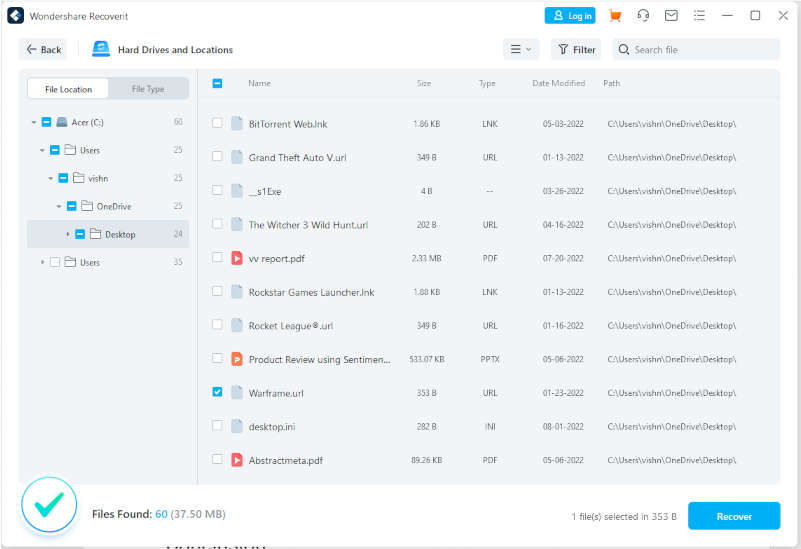
Once the scan is complete, you will be presented with a list of files that can be recovered. You can select all or the files you want to recover and then hit the Recover button. Finally, specify where to save these files then it will be restored and saved to the location of your choice.

Advanced video recovery

Wondershare Recoverit review

Video files are different from audio files, images, and document files. Sometimes you get a file, but it might not play; that’s because it is corrupted. In that case, its advanced video recovery tool will help you. It analyses, collects and combines segments of damaged video and ensures that it is recovered without any flaws.

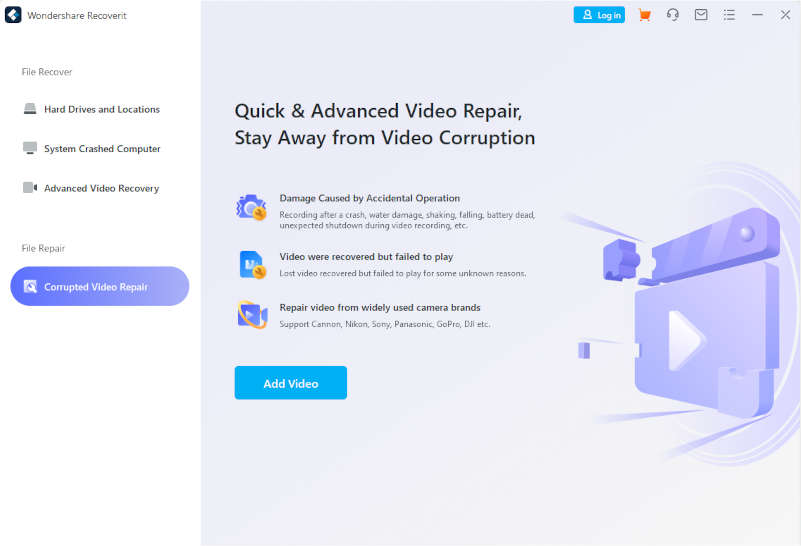
If your video is damaged due to logic or storage-related issues, Wondershare Recoverit allows you to repair the damaged video file through the video repair feature. 

Wondershare Recoverit video repair

To enjoy this feature, you need to select the corrupted video repair option and add the corrupted video. After adding the video, wait for Recoverit to fix the video. The best part is that this tool has the ability to repair multiple videos at the same time.

Recycle bin collection

If you deleted files from your computer and emptied the Recycle Bin to free up disk space, you later realize that some important files were accidentally deleted. Wondershare Recoverit can recover all files deleted from Recycle Bin. All you have to do is select the Recycle Bin from the available options, scan it and start the recovery.

Formatted disk recovery

If you accidentally format your hard drive, this feature can help you recover your data. It is specially designed to recover data from internal and external formatted drives.

Lost partition recovery

If you accidentally changed your computer’s partitions while reinstalling Windows and lost some files, Lost Partition Recovery can help you recover files lost while deleting or resizing partitions.

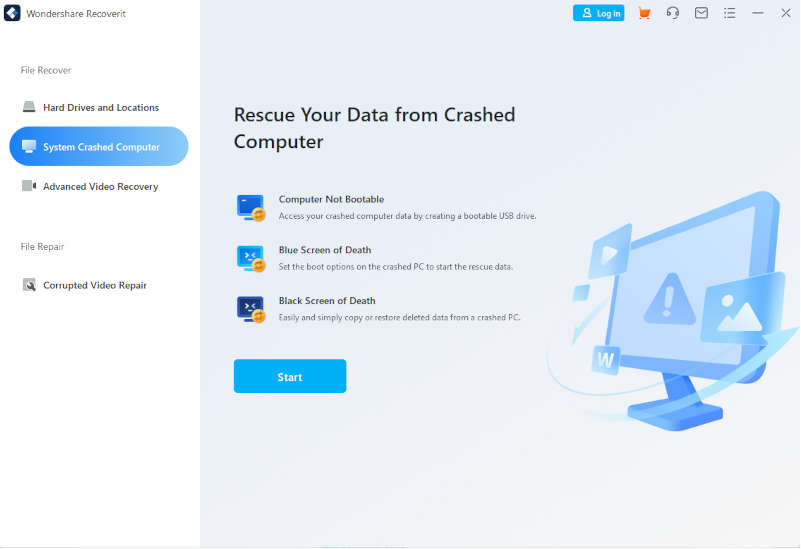
Recover from a crashed computer

Wondershare Recoverit crashed computer

This option allows you to create a bootable disk that helps you recover your data if Windows cannot boot after a system crash. Once your Windows OS is ready, we recommend creating a bootable recovery USB drive.

How to use Wondershare Recoverit?

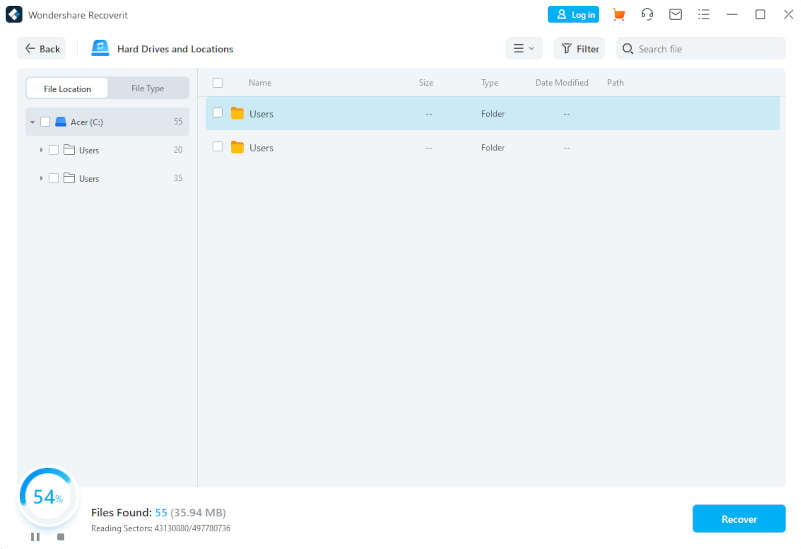
Download the file recovery software, install and run the program. This will be the interface.

Wondershare Recoverit UI

Select the drive or folder from which you want to recover files. After selecting, the search will begin.

Wondershare Recoverit UI 1

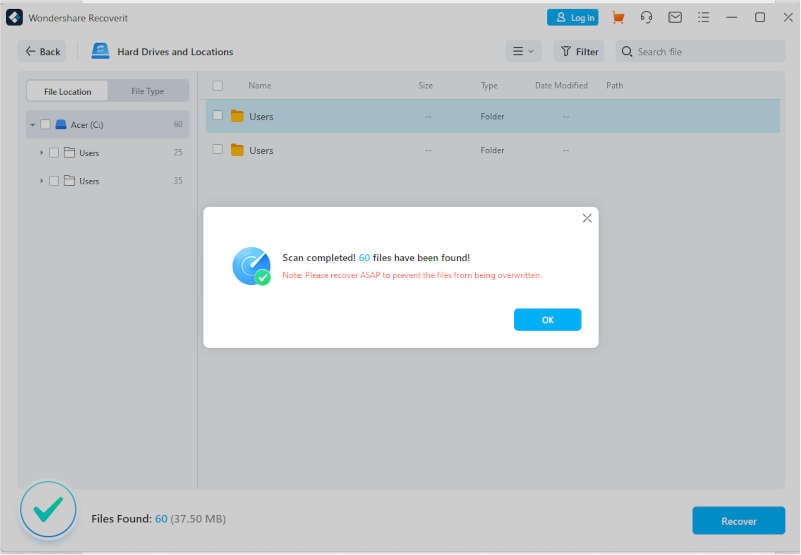
Wait for the scan completion.

Wondershare Recoverit UI 2

Select the required files from the list and click on the Recover button at the bottom right corner.

Wondershare Recoverit UI 3

The selected file will be recovered to the specified folder.

If you want to recover deleted files from recycle bin, just select the recycle bin from the options, and then the scanning will start. Then select the required files and click on recover, as shown above.

Wondershare Recoverit is a commercial application, so you need to pay for the license if you want to use it. Free version allows users to recover up to 100 MB of data. Also, it has a monthly plan — depending on your use and budget, you can select the one you need. Licenses can be obtained for one month, one year or for life.

Conclusion

Find and recover deleted, formatted or crashed files from your computer, hard drive, USB, SD card and many other drives. Even if you suffer from data loss, Recoverit allows you to recover lost or deleted data without backup. Wondershare Recoverit is a great recovery tool that offers various target recovery options and supports almost all file types and external devices. It has a clean and easy-to-use UI. Next time you delete a file accidently, don’t worry Wondershare Recoverit has got you covered. 

Best Beginner Friendly Video Editor For YouTube In 2022

Wondershare Filmora review

With the spread of smartphones, we have entered an era where videos can be shared and consumed more easily than ever before. Also, with the spread of telework and side jobs accelerating, more and more people want to earn income on YouTube.

Recognition of the profession of “YouTubers” is increasing, and that’s why video editing is one of the skills that is currently attracting attention. Under such circumstances, video editing software is flooded, and which editing software is better to use? It’s getting harder and harder for beginners to decide.

Also, since YouTube viewers are becoming more discerning, poor editing can lead to frustration because the number of views and channel subscribers will not increase. So, let me help you to find the best tool to get you started with YouTube.

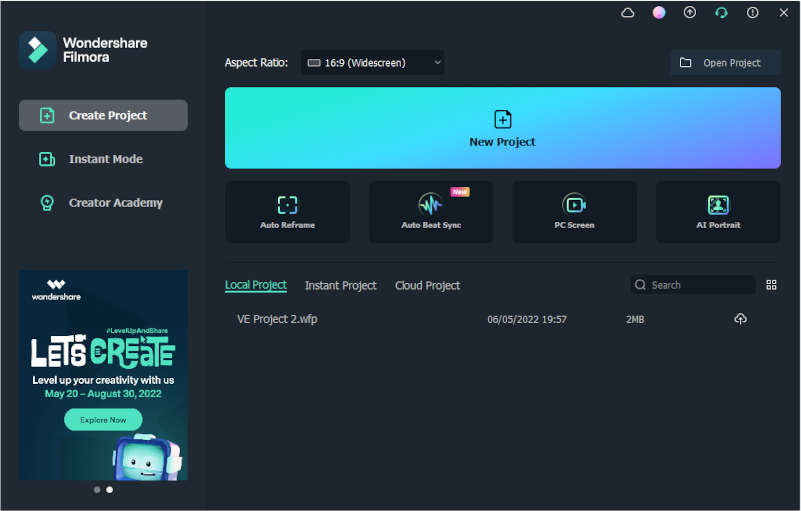
Wondershare Filmora is a complete package editor for beginners to intermediate users. The intuitive interface is easy to use, and it is popular among YouTubers and people who edit videos for work because it is easy to get used to if you are switching from other video software or just starting in the video editing field.

Spice up your videos with tons of effects, transitions, elements, and more, and split-screen templates make it easy to play two videos side-by-side. In addition to motion tracking and keyframe functions, you can use over 20,000 effects and automatically recreate the aspect ratio for each social media such as YouTube and Instagram etc.

Advantages Wondershare Filmora

Wondershare Filmora UI

Its lightweight and can be used even if the PC spec is low

Some people think that video editing can only be done on a high-spec computer, but there is software that doesn’t require high-spec PCs, and Filmora is one of them. It is video editing software that is light enough to run on most personal computers even with an i3 processor and 4GB ram.

Intuitive to use even for beginners

If you are new to video editing, the editing software looks complicated, and you might not know where to start, which can lead to frustration. However, it does not mean that Filmora is easy to use as there are few functions, but all the functions are neatly organized, and the UI is easy to use even for beginners.

Motion Tracking

Track the movements of objects or people in your videos and pin media files and graphics to magically track every move. For that, just set up your stuff and let Filmora follow its path automatically. You can also adjust the size and position of the tracking area displayed during the preview. It comes with AI automation to allow adding texts and titles and lets you add a mosaic to your moving objects if you want to blur something.

Plenty of templates

Since Filmora is software for beginners, it is not possible to do detailed editing, such as creating detailed effects yourself. However, you can freely use high-quality templates that even advanced video editors cannot create.

It has 50+ free music resources, 250+ text templates, 200+ transitions, 150+ video filters, 250+ effect templates and nearly 200 elements (gif material), and a lot more. Since each template can easily reproduce the editing that a professional uses, this is the best editing software for those who want to edit like a pro easily. Furthermore, since you can download additional free and paid template materials from the official distribution site, it seems that you will never run out of templates.

Keyframes 

With keyframing, add energy and dynamism to your videos and use animated effects. It simplifies animation and allows you to quickly apply changes, such as enlarging, rotating, shrinking, etc. Simply set the start and end keyframes and let Filmora automatically add all frames in between while ensuring consistency. You can customize keyframes by setting location, transparency, size, etc. Filmora offers over 80 pre-made animation templates that save you time.

Unique Editing Functions In Filmora

Video Editing

Tons of video effects

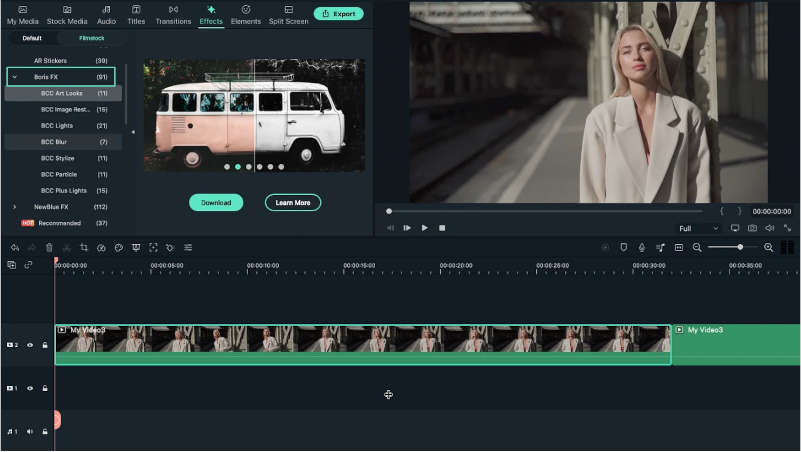
Filmora offers more than 900 video effects for free that you can just drag and drop. Filmora has cooperated with OpenFX, Boris, and NewBlue for offering us video effects to deliver a purely cinematic experience.

Boris FX

Wondershare Filmora Boris FX

Enhance your storytelling experience with Boris FX Continuum, a premium effects plugin. You’ll get six unique Continuum units customized to add visual effects, including lights, stylizations, particles, image restoration, artistic looks, and blurs. Each of those 6 units has different filters, and corresponding presets. It offers 91 effects and thousands of unique presets.

NewBlue FX 

Boost your video creativity using NewBlue FX. It offers five effect collections – Title Pro 7, Video Elements, Video Essentials, and Video Stylizer. Each effects collection has factory-installed presets, including over 500 custom title presets and over 100 effects.

Speed Ramping 

Create unique cinematic effects by slowing a portion of your video or suddenly speeding it up. You can have better control over the speed ramp using keyframes to adjust the speed of your video. Filmora has six preset speed ramping effects- Montage, Hero moment, Bullet Time, Jumper, and Flash in, which can be very helpful for performing a professional speed change effect. Well, speed ramping only the video can make the audio weird, and that’s why Filmora also offers to maintain the original audio while speed ramping. 

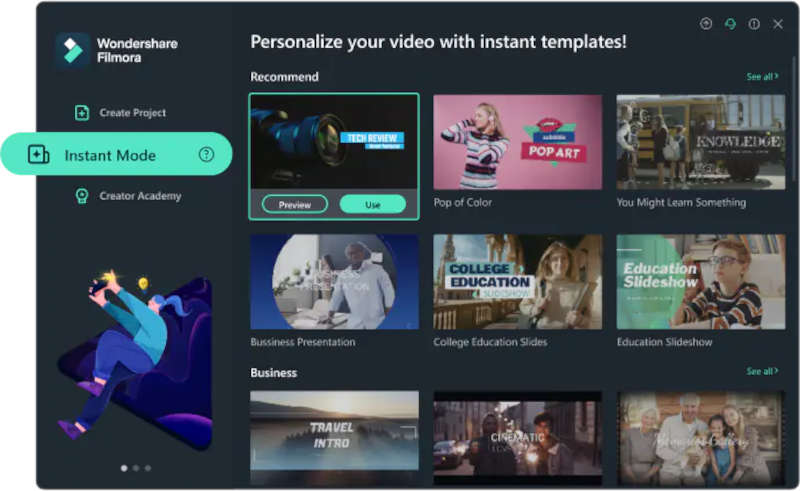
Instant mode

Due to Filmora’s Instant Mode, production and editing only take a few minutes. You can choose between instant mode and full mode when you first launch Filmora. You are in charge and have better control over your YouTube video while using full mode. Snapshot mode automatically produces video for you. You just need to import clips, choose a music track, and select a pre-programmed theme in this mode. Filmora completes the remaining analysis and editing.

Wondershare Filmora Instant mode

This option is great for beginners who don’t want to waste too much time making simple YouTube videos but still want to get the job done. The maximum number of edit tracks you can have on your timeline in snapshot mode is eight, which is great for simple tasks.

AI Portrait

This is a fantastic plugin that you can use to easily remove the background with optimum precision. You will get 70+ AI sticker effects and portraits also Filmora’s AI can also detect faces to provide AR stickers to enhance human emotions.

Green-screen

This amazing video editor is simply one of the best with the green screen feature, which can help you change the background in no time. Green screen is a fun tool in video creation processing, allowing you to overlay subjects with different virtual background video clips to create cool videos, such as giant and dwarf, flying superman in the sky. You can record videos with or without pure green background and use Filmora Video Editor green screen feature to create special videos.

Mask and smudge

You can create creative videos using the mask and smudge feature. All you have to do is cover your video clips and mix them. This easy-to-use feature offers many ingenious modes. You can even use overlays to edit, hide or reveal your videos and choose any shape like a rectangle, heart shape, triangle, flower shape, etc. and adjust the height, width, location etc., and save the videos.

Audio Editing

Speech to Text (STT)

This plugin allows audio transcription to accurate subtitles in one click to save time and improve editing efficiency. This tool will automatically detect the voice for transcription and allow you to modify it according to your preferences. It supports different import formats like SRT format while providing a timeline feature to edit subtitles. 

Text-to-speech (TTS)

Filmora offers a TTS function to enable the conversion of text files into voiceover to enrich all your videos. Adding voice to video is easy with this tool that delivers incredible precision by leveraging state-of-the-art algorithms. You can customize the voice and choose from the available languages.

Auto Beat Sync

Synchronize video clips by editing them with accompanying music using the Auto Beat Sync feature. Filmora offers Auto Montage Maker, the first of its kind in the world. It can help you automatically synchronize video with music and analyze beats to change views or add visual effects. It can also identify and eliminate bad parts of your video like darkness, jitter, etc.

Silence Detection

This feature automatically detects parts of a video with moments of silence and removes them according to to set criteria to help you create high-quality videos without annoying pauses.

There are different subscription plans included in Filmora. You can choose the annual plan, which has a price of $49.99, or there is a lifetime subscription plan which has a price of $79.99. While it might not be as cheap as its other competing software options, it is reasonably priced, considering you get a host of amazing benefits and features.

Do you want a reliable and best video editor for YouTube — well, there is definitely no better option than Wondershare Filmora.

Simple Hacks And Best Tools To Limit Memory Usage In Google Chrome

Simple Hacks And Best Tools To Limit Memory Usage In Google Chrome

Nevertheless being the powerful and popular browser of all time, Google Chrome always like to hammer our PC RAM. RAM usage of Chrome is always at the peak level, these effects mostly who have PC with up to 4 GB RAM.

Yes Google knows it too and they are working on to limit memory usage in Chrome in future updates. But what we can do to control Chrome’s memory use.

In this article am going to share some useful tips and tools to limit memory usage in Chrome.

How do I know, how much RAM is Chrome using?

Since Chrome have an exclusive Task Manager, like Windows Task Manager, where you can find how much memory has been utilized by each tab and extension. You can open this Chrome task manager by pressing “Shift + Esc” or by clicking the option menu in top right corner and selecting “Tools > Task Manager” from the drop down menu.

limit memory usage in chromeIn task manger you can find out how much memory has been used by each tab,graphics processor, extensions and plugins.

How to limit memory usage in Chrome ?

Since we didn’t want to shift to other browser and like to control the RAM thirst of Chrome everyone like to know how to tame Chrome’s memory usage. So here are some simple tips and useful extensions that will help you out in this matter.how web browsers consume ram memory chrome eats it all gif animation

Tips to control memory usage in Chrome:

Minimum Tabs:

Yes opening more tabs in Chrome is the main reason behind memory leak.Always try to keep minimum number of open tabs in your Chrome browser and don’t forget to close unused tabs. You can alwayd find out which tab is using more RAM and you can end it by pressing “End Process” button in Chrome task manager.

More Extensions:

That’s right more extensions — more RAM in Chrome. Since each extensions have some dedicated functionality — doesn’t want to work on every website we browse, so always disable extensions that are not important for your present browsing mode. For example you have a YouTube video downloader extension whose sole purpose is to download videos from YouTube, so disable this extension when browsing other websites.

And always uninstall buggy extensions.

Reset Chrome’s Browser Settings:

Reset your browser every 1-2 weeks and use it like newly installed one.

Tools or extensions to limit memory usage in Chrome:

1. The Great Suspender — Most famous and used RAM saver Chromeextension which automatically suspends unused tabs to free up system resources.

2. OneTab — Converts all open tabs to a list saving memory in the progress as tabs are closed afterwards. You can open any of them at any time with a click on the extension’s button.

3. Tab Hibernation — Tab Hibernation frees some memory and CPU on your computer by killing all inactive tabs. Your tabs won’t get lost and you can restore them with a single mouse click.

4. TooManyTabs — TooManyTabs offers you a clean interface where you can manage all your open tabs, or use it to quickly switch between tabs. This extension really comes in handy when you are working with ten or more open tabs simultaneously.

5. Tab Outliner — Tab Outliner limits the number of open tabs you need open, slashing your memory usage significantly. And it does this by closing your tabs and saving them exactly where you left off by putting them in a vertical side window, so it’s as if they were never closed, but just waiting for you to come back and open them.

I think you all like these Chrome memory freeing extensions.

Finally I have to say only one thing always try to keep limited number of tabs and disable or uninstall unwanted extensions. And if you think Chrome hogging RAM, then switch to another browser.