Home Blog Page 146

Apple Announces Software Update To Fix Camera Shake Bug On iPhone 14 Pro

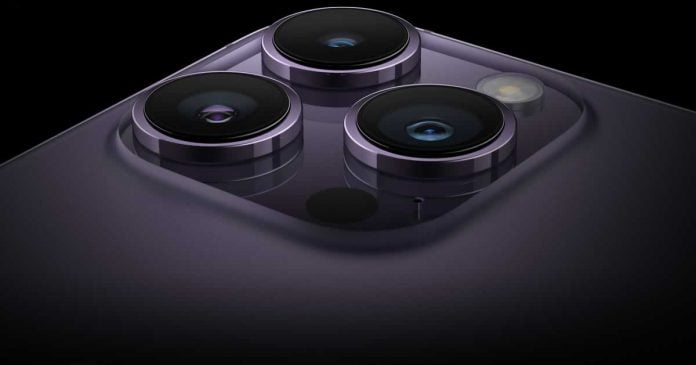
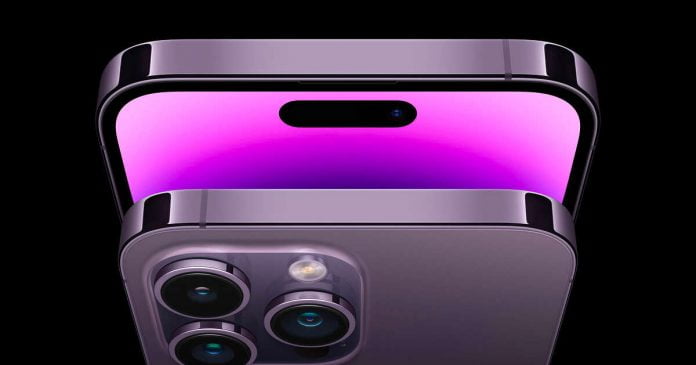
Camera On iPhone 14 Pro

On the iPhone 14 Pro and iPhone 14 Pro Max, a bug has been reported in which the rear camera vibrates when using some third-party camera apps. Apple has announced that it will deliver a software update to fix this bug by the next week, i.e., by the end of September.

It has been reported that when you open a third-party app such as Instagram, TikTok, or Snapchat on your iPhone 14 Pro and launch the camera within the app, the device camera will vibrate and you will not be able to take photos or videos properly due to the blur and shake. This bug does not occur in Apple’s default camera app but only in third-party camera apps.

Apple told Verge in an email, “We are aware of the issue and a fix will be released next week.” According to Bloomberg, this is due to a firmware fault with the iPhone 14’s optical image stabilisation (OIS). 9to5Mac recommended refraining from using third-party camera apps since the shake can affect the camera hardware.

The iOS 16, released on September 15th, is the second camera-related update after its launch. The first software update addresses an issue where iMessage and FaceTime activation problems. Another issue was the iPhone 14 Pro Max’s lack of display sharpness in landscape orientation. The iOS 16.0.1 was delivered to fix the problem.

Apple hasn’t provided any further details, but since iOS 16.0.1 has already been released, the software update that addresses the camera shake bug will likely be delivered as “iOS 16.0.2.” 

Solitaire Clock Card Game for Your Kids

Solitaire Card Game that Your Kids Can Play

Many card games are devised to keep kids busy and develop their skills. In fact, playing cards is one of the most common and earliest forms of entertainment for children that can also help build necessary skills for kids.

Card Game Benefits for Kids

Card Games help kids develop their motor, cognitive and emotional skills

If you want to advance your kid’s dexterity and eye-hand coordination, play the Solitaire card game Clock. The game is a great way to introduce kids to the problem solving required in card games, and it’s a great stepping stone to the classic version, Klondike Solitaire. The simple act of holding cards in their young hands is essential in developing these two motor abilities. Complicated card games can also help build agility. Such games are designed for kids 3 years old and above.

Cognitive Skills

Playing card games stimulates a wide range of cognitive skills, including memorizing, matching, number and pattern identification, and developing math proficiency. As the degree of difficulty increases, kids use their intelligence more to provide answers and strategies.

The effectiveness of card games can also be gauged by their ability to improve the player’s skills in probability and statistics. But to hold the child’s attention, the game must be consistently entertaining. If you’re playing with your child, you must have a positive attitude to ensure that they will have fun as they learn.

Emotional Intelligence

How do card games help kids’ mental health?

Small children engage with their family in a familiar setting (i.e., at home) and are encouraged to compete pleasantly.

As parents, use card games as a way to teach them how to handle the loss. Patience and fair play can be introduced to young players, and card games are an excellent tool for doing so. All card games need communication; thus, children need to talk, learn the rules, take turns, and challenge one another. Helping a buddy in need and being an honest team player are additional examples of the emotional advantages of card games.

How can we deal with a child’s emotional pain after a loss? Keep things exciting and show the youngster that playing should always be fun.

Solitaire Card Game for Kids

How to Play Clock Solitaire?

Solitaire is perhaps the most popular card game, but if you want to spice things up, try Clock Solitaire. This new take on an old favorite is played with cards on a clock position, hence the name.

While it’s hard to win in Clock Solitaire, the game is still fun. It is so difficult to win because it is a card game based solely on chance. Clock Solitaire is known by various names like Four of a Kind, Hidden Cards, Travelers, and Sun Dial.

Clock Solitaire is for a single player only. What you need is a standard card with 52 decks. The game’s goal is to complete all other four kinds before the fourth king is exposed.

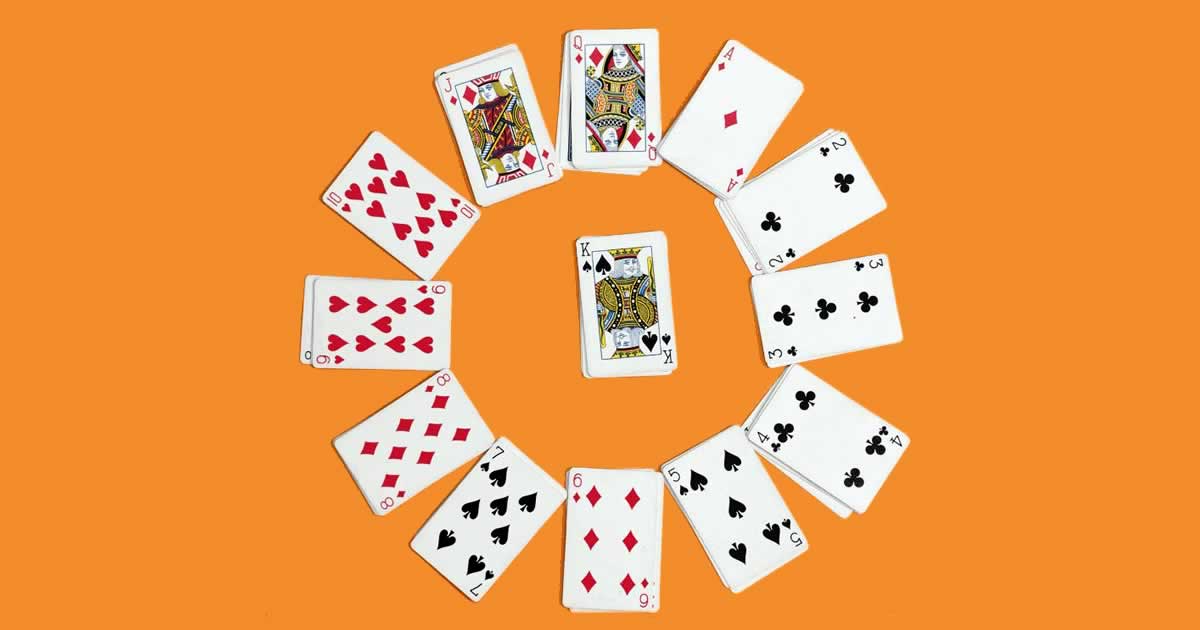
The game begins by shuffling the deck and dealing the cards face down, forming 13 piles of four cards each. The piles must be arranged similarly to the position of the clock’s number. Thus, the setup will be 12 piles on the outside (1-12), and one (13) at the center.

Gameplay

Turn the top card of the 13th pile (the one in the center) face up. Put the card (face up) behind the pile containing the card’s number. For instance, a 3 must be in the 3 stacks. An ace will be behind the first pile. Face cards are arranged in the following order: jack in 11, queen in 12, and king in 13.

Take the top card, turn it, and place it under the appropriate pile while in a face-up position. Continue doing this in a clockwise direction until the game is over.

If the final face-down card in a pile belongs to that pile, continue the game by turning the next face-down card face up (clockwise).

Chances of Winning

You win if all 13 piles become face-up four-of-a-kind piles. You will lose if the fourth king is turned face up before all the other sets are finished. Clock Solitaire is a game of chance, so the probability of winning is only 1%.

The reason is that each of the 52 potential card sequences you can meet in the extended game (including cheating if you get stuck) is equally likely. You will only win if and only if the last card in this sequence is a king.

The notion is that every time you turn up a card, it is just as likely to be one of the cards you haven’t seen before. Even if you’re getting it from a different position in the clock is immaterial. Instead of setting out the cards ahead of time, you may just walk through the deck, taking the top card and placing it where it goes, then placing the next card where it belongs, and so on.

You lose if you face up the fourth king before the deck runs out. So, if you’re lazy, you may just go through the deck without putting the 1 cards where they belong; if you locate the fourth king before the deck runs out, you lose. If you’re feeling stubborn, you may simply look at the bottom card; if it’s not a king, you lose.

In this light, clock solitaire isn’t particularly intriguing. Its primary practical application is to make sorting a deck into ranks more enjoyable. There is also no winning strategy since this is a game of chance.

Clock Solitaire Variations

If the Clock Solitaire, as described above, is not that exciting for your kids, try one of these versions. One version aims to stack each card in four-of-a-kind piles while alternating the card color. This means you can only put a red ace on top of a black ace, and so on.

As you can expect, this gameplay makes the game more difficult. If you like this version, you may include a waste pile for the cards you cannot place yet. Players are only permitted to get a card from the waste pile two times during the game. Most games, however, end before the waste pile is used.

6 Microsoft Edge Features Not Present On Google Chrome

Microsoft Edge browser popularity

Microsoft Edge is the default browser of Windows 10 and 11. In many respects, it copies the functions seen on Google Chrome, as it is based on Chromium — an open-source browser on which many modern browsers are based, including Chrome and Edge.

But what if we wanted to find some Microsoft Edge features not present on Google Chrome? 

In this article, we will see the useful functions of Microsoft Edge that we cannot find on Google Chrome and can convince users to keep Microsoft’s Edge as the default browser for accessing websites. 

Vertical Cards

This function allows you to move the tab section of the browser to a convenient sidebar on the left, where all the open tabs will be present. After activating this bar, we will only see the site icon on the left side of the window, with the ability to create new tabs, reopen recently closed tabs, expand the bar at will, make it fixed or hide it at any time.

To activate the vertical tabs, click on the tabs icon in the top left corner of the browser and click on the Activate vertical tabs option; alternatively, we can activate the item using the shortcut CTRL + SHIFT +, (comma).

Edge Bar

One of the Microsoft Edge browser’s most underrated features is the Edge Bar — a quick feed bar for keeping tabs on relevant news, stocks, weather forecasts and much more.

To use the Edge Bar, press the three dots at the top right, open the Settings menu, select the Edge Bar menu and press Open Edge Bar to activate it. On the same screen, we can choose Automatically open the Edge bar when the computer starts.

If, on the other hand, we want to customize the news and feeds to be shown in the bar, press the Personalize button, present in the same window seen so far.

Web Page Capture

On Microsoft Edge, we can capture web pages without having to use third-party apps and without having to install extensions. To capture a web page, press on the three dots at the top right and click on Web Capture; alternatively, we can use the keyboard shortcut CTRL + SHIFT + S too, which is much more comfortable to use.

The web page will darken, and two options will come out at the top, from which you can choose whether to choose an area to capture or capture the entire web page. In both cases, we will have access to a screenshot editor built into Edge, which is great for adding notes, arrows, underlines and other details. At the end of the changes, press Save or Add to collections at the top to save the screenshot.

Picture-in-Picture (PiP) Mode

Microsoft has enabled Picture-in-Picture mode in Edge by default — this means that every time we start videos on a website with this browser, at the bottom of the video, we will see a small button to activate the PiP mode, which will allow you to reduce the video to a small window so that we can open other windows and tabs while watching the video.

Edge allows you to resize the video viewer, and we can move it to any part of the screen if we don’t like its original position.

Collections

On Edge, we have always found the Collections section present as a dedicated button next to the address bar. This section allows you to save links to sites to read later, images taken from screenshots, portions of text, RSS feeds and much more. It can be used as a temporary container to store links and sites for later use or as a quick bookmark system, using Microsoft’s synchronization to open collections on other Windows 10 or Windows 11 PCs.

You can drag and drop a webpage or image to the collections. If you want to add text, select the required text and right-click and select the add to collections option.

This feature has long been the prerogative of Edge, but in the latest versions of Chrome, we find the Reading List, which works in a very similar way.

Efficiency Mode

Since Microsoft Edge is integrated into Windows, it can interface with the energy-saving system to reduce battery consumption when we use Windows on a laptop. 

To activate the efficiency mode, all we have to do is press the three dots at top right, select the Performance option and, in the menu, you will get options — low battery, unplugged, always and never, select the option Always.

Alternatively, we can choose the option that allows you to activate this mode only when disconnected — to optimize the consumption of the Edge only when we are using the laptop battery.

Even if Google Chrome remains the most used browser in the world, Microsoft Edge is certainly quite different from the old and slow Internet Explorer. Microsoft’s default browser deserves at least a chance since it offers many interesting features for those who work or study on the PC. It offers very good speed and responsiveness, typical of Chromium-based browsers, with great support for Chrome extensions and synchronization via a Microsoft account.

Microsoft Edge can be a superior browser to Google Chrome, especially if we use the functions described in this guide.

Necessary Mobile Sensors That Make Our Smartphone Smarter

Mobile sensors Make Smartphone Smarter

Smartphones, which are indispensable to our lives, are equipped with various mobile sensors. The evolution of various sensing technologies has made it possible to do everything with smartphones as it is today.

In this article, we will explain smartphones from the perspective of sensing technology.

Today’s smartphones are high-performance devices that double as telephones, cameras, personal computers, car navigation systems, and game consoles. All of these are because of the integration of sensors in the smartphone.

Without mobile sensors, the smartphone would not be so interesting and in demand — as the palm-sized gadget would be without communication with the environment. Sensors make a smartphone smarter because the majority of smart functions that the smartphone claims are largely due to the smaller and higher-performance sensors.

A wide variety of sensors are installed in smartphones and perform various functions. Here, we have listed some of the important sensors that are often installed in smartphones and explained their features and roles.

Smartphone Sensors You Should Know

Accelerometer

An accelerometer measures the acceleration of an object. Acceleration means a change in velocity per unit time, and by measuring acceleration — the inclination, movement, vibration, impact, etc., of an object can be detected.

It is the function of this accelerometer to automatically switch between portrait and landscape orientation on the smartphone screen and camera app. In addition to that, it is also used for displaying the movement speed on a pedometer and map application and for camera shake correction. Accelerometers are one of the essential sensors for smartphones.

Gyroscope

A gyroscope measures the angular velocity of an object. Angular velocity means the change in the angle of rotation per unit time, and by measuring the angular velocity — it is possible to detect changes in the rotation and orientation of an object. It is very similar to the accelerometer mentioned above, and it works in pairs, successfully complementing each other.

Racing games that are played by tilting the smartphone are realized by the functions of the accelerometer and gyro sensor. In addition, the VR/AR app displays images as the smartphone rotates based on the gyro sensor. When an app asks you to slightly tilt the mobile screen, it is the gyroscope that comes into action to measure those small turns since the accelerometer is not enough.

Magnetic Sensor

The magnetic sensor measures the magnitude and direction of a magnetic field. Sometimes called a geomagnetic sensor or electronic compass, it is mainly used to measure the magnetism of the earth and know the direction.

Magnetic sensors are most useful when using map apps. Magnetic sensors are used to determine which direction you are facing, and this mobile sensor is very important, especially when moving on foot or climbing a mountain.

Smartphones are often equipped with a combination of a magnetic sensor and the accelerometer/gyro sensor described above as a module called a 9-axis sensor. These three are common mobile sensors installed in early smartphones and have supported the evolution of smartphones.

GPS Sensor

GPS (Global Positioning System) sensor measures the current position of our smartphone by receiving signals emitted by satellites. Normally, it is difficult to measure the position indoors or underground where signals from satellites cannot be received, but in the case of smartphones, it can be measured at a certain position using radio waves such as base stations and Wi-Fi.

Since GPS does not use mobile network data, so geolocation also works outside the cellular coverage area — even if the map itself cannot be downloaded, the geolocation point will still be there.

GPS sensors are used not only in map apps but also in SNS, cameras, games, etc. You can record the posted location on SNS, and the information of the shooting location is also recorded in the photo taken with the smartphone camera. Recently, games that use the location information of smartphones to play while walking around the real world are very popular, like Pokémon GO.

Proximity Sensor

Proximity sensor allows you to determine the proximity of an object without physical contact with it. For example, a proximity sensor is in charge of allowing a smartphone to turn off the screen backlight when the phone is brought close to the user’s ear during a call. Usually, this smartphone sensor is located above the screen next to the front camera of the device.

Biometric Sensor

Smartphones are equipped with biometric sensors such as fingerprint sensors. Fingerprint sensors have been used to simplify personal authentication, such as screen unlocking and electronic payments.

Recently, the fingerprint sensor is changing to face recognition, and the number of cases where the person is authenticated using a camera or infrared sensor is increasing.

Ambient Light sensor

The ambient light sensor is a sensor that detects the intensity of light and can grasp the brightness around the smartphone. Often referred to as a brightness sensor or light sensor.

In smartphones, it is useful for automatically adjusting the screen brightness according to the ambient brightness. By brightening the screen so that it is easy to see when the surroundings are bright and darkening the screen when the surroundings are dark, it is possible to save power while making it easier to see naturally.

Incoming More New Mobile Sensors

The sensors introduced so far are installed as standard on many smartphones, but the latest smartphones use sensors that use more advanced sensing technology.

For example, LiDAR, which is attracting attention in the fields of autonomous driving and robots, it is installed in iPhones released after 2020. LiDAR is a sensor that uses laser light to measure the distance to a distant object. In addition, LiDAR can be used to accurately measure the positional relationship of objects reflected on the screen, so it is expected that the image displayed on the AR application will be more accurate.

Smartphones have undergone significant evolution due to the evolution of sensing technology and the miniaturization of sensors. With the further evolution of sensing technology, mobile sensors that were not previously installed in smartphones may be installed, and new functions may enrich our lives. In the future, it would be interesting to observe the functions of smartphones from the perspective of sensing technology and sensors.

Over 90 Early Footage Videos Of GTA 6 Gameplay Leaked Online

GTA 6 Gameplay Leaked

You may be witnessing a historical dump of media that has surfaced online, containing hours of leaked footage from the pre-release build of the first GTA 6. 

Until now next entry in the Grand Theft Auto franchise remains shrouded in mystery, and beyond the brief confirmation from Rockstar Games, we know next to nothing about the project. The title, informally known as GTA 6, is their first mainline game since 2013’s GTA V, which has hit record sales of 170 million.

Now, with over 90 videos leaked, the game’s early iterations of its engine, planned settings and gameplay were showcased.

The leaked footage closely matches what Bloomberg reported in July, as part of the game’s first female lead detective duo. The story is set to take inspiration from the infamous Bonnie and Clyde and reportedly also aims to retain the humorous themes of the franchise while creating a more overarching tone.

The alleged GTA VI footage was posted by GTA Forums user teapotuberhacker, posting various snippets of the game from what appears to be an early development build — featuring two main characters, including a Latina woman named Lucia. The build also hints at a Vice City setting that hints at the return of a Miami-inspired locale from 2002’s GTA Vice City.

Over 90 videos have been leaked highlighting the heists, NPC interactions, vehicles, and other aspects of the vast playground. The footage looks like it is from older builds, implying that production is happening alongside current GTA V content upgrades.

This is a historic leak from a very tight-lipped developer and our first look at one of the decade’s most anticipated games. Rockstar Games’ parent company Take-Two Interactive has high hopes for GTA 6. Most of the videos were taken off the internet by Rockstar games, but only a few remain.

iPhone 14 Pro Camera Shakes And Vibrates When Using Third-Party Apps Like TikTok, Snapchat And Instagram

iPhone 14 Pro and iPhone 14 Pro Max

It seems that many popular third-party apps were not ready for the new iPhone 14 Pro camera technology. Several iPhone 14 Pro users cannot take photos and images with third-party apps such as Snapchat, TikTok, and Instagram. These issues include camera shake and even physical noise.

Users concerned about the issues with their iPhone 14 Pro have shared their experiences on Reddit and Twitter. Many users commented that they had had similar problems with Snapchat, Instagram, and TikTok.

Several videos depicting this issue have been shared on social media. In the videos, you can see the iPhone 14 Pro camera shaking in third-party apps, while the physical camera module also makes a grinding/creaking sound.

Since this iPhone 14 Pro camera shake/noise issue only affects the camera in third-party apps, it’s almost certainly a software bug. Most likely, these third-party apps are not being updated yet for iOS 16 and are unprepared for the iPhone 14 Pro’s miraculous camera changes. In particular, it could be related to optical image stabilization, hence the clicking noises by the camera module itself.

Currently, no solution to this problem has been offered. Affected apps such as Instagram, Snapchat, and TikTok will likely need to roll out specific updates to their respective apps for the iPhone 14 pro to fix the issue.

6 Things Every Good Programmer Should Do

programmer working from home

Programming is hard. On many occasions, we encounter complex problems with algorithms or how to structure a solution, but it is no longer a matter of solving them but of solving them well. A poorly implemented solution can lead to even more severe problems, but this is something you know from experience. An experienced programmer will try to determine the consequences of writing a specific code and check that everything works correctly after implementing it. However, an inexperienced programmer can get stuck and spend hours on something a senior would do in minutes. What should we do to become better programmers?

Program

This first point may seem absurd, but it is not. Many people think you learn a lot by copying and pasting code, and they couldn’t be more wrong. To be a good programmer, you have to program. There is no other method.

Read the documentation

This second point has a lot to do with the previous one. I recommend you read the documentation to program fluently and know the language well. This way, you will know the existing methods, the parameters they receive, what they return, in which versions they are available, etc.

Acquiring experience, I have been consulting much more on the documentation of the language itself than concrete solutions and implementations to a problem.

Search in Google

Also very obvious, yes, although it seems that there are people who do not know that it is not wrong to do an Internet search of the problem they have. I almost don’t believe I have to tell you that it is necessary to search on Google and not to stay blocked in front of the screen thinking about what to do.

We don’t know everything; I don’t think anyone pretends we do. That is why you always have to be decisive, even if you have to use the solutions proposed by other programmers for a similar problem.

Ask

If you don’t know something, you can ask a colleague if you do. They may have been in the same situation as you and can help you quickly.

If you don’t have peers, you will always find a solution through a programming assignment helper, saving you time and keeping you from getting stuck on a single task. So, as a result, you’ll have the opportunity to take more time to the projects you’re good at and enjoy your programming activity.

Test

When you start programming and run tests, you probably think they are unnecessary because your code will never fail. However, as an application grows, it becomes necessary to program tests. It makes our code better and more organized.

Tests always, please!

Enjoy

If you enjoy programming, you will be an excellent professional. If you are passionate about what you do, you will go far. That’s when inexperienced programmers will come to you for help.

Conclusion

Remember, please, that everything you should or shouldn’t do is for you to decide. But note that if you try as many tips as possible, find the best way to code for yourself, and program with delight, nothing will eventually stop you from successful career growth in programming.

“Intel Processor” Will Replace The Pentium And Celeron Brands

Intel Processor

Intel has announced a new naming scheme that is to be used from 2023 — the chips previously known as Celeron or Pentium will be advertised as Intel Processor in the future, at least in the notebook segment.

Intel is retiring the Pentium and Celeron processor families — which are at the lower end of its in-house portfolio — to focus even more on the higher-ranked premium brands Core, Evo and vPro.

While Core is still the brand for the most powerful Intel chips, Celeron and Pentium were mainly used for the former Atom processors. In addition, there were core offshoots below the Core i3 that were particularly severely trimmed in terms of functions such as performance.

As Intel has announced, processors that have already been released and CPUs that are already on public roadmaps are not affected by this measure.

The manufacturer has not yet answered whether and when the Pentium and Celeron processors in the desktop will follow the example of the mobile offshoots. However, it can be assumed that the entire product portfolio will rely on the new nomenclature for processors in the medium term.